Automatic layout
- Home
- Resources
- User manual
- Presentation basics
- Shapes and elements
- Automatic layout
With automatic layout, thinkcell elements can automatically adjust their size and position to help you create slides faster.

Introduction to automatic layout
Using thinkcell's automatic layout, you can do the following:
- Automatically fit text boxes, tables, and charts to their contents.
- Create dynamic alignments between elements. When you edit the contents of a dynamically aligned element, the other elements move or resize to preserve the alignment.
The following table summarizes the main functionalities of automatic layout.
|
Element |
Automatic layout functionality |
|---|---|
Lock and unlock elements
You can control automatic layout by locking and unlocking the edges of elements.
Unlock the edges of elements
An unlocked edge can automatically move to preserve a dynamic alignment or fit the contents of a text box, table, or chart. An unlocked edge has a blue resize handle 
To unlock an edge, select the element, then right-click the edge's resize handle.

To unlock two adjacent edges, select the element, then right-click the resize handle at the corner where the two edges meet.

Lock the edges of elements
A locked edge doesn't move, even when the contents of the element change. A locked edge has a white resize handle 
To lock an edge, select the element, then do one of the following:
- Left-click the edge's resize handle.
- Drag the edge's resize handle.

To lock two adjacent edges, select the element, then left-click the resize handle at the corner where the two edges meet.

If you drag a resize handle at one of the element's corners, all edges of the element will lock.

Lock and unlock elements in a multi-selection or group
When you select multiple elements or a group of elements, an outer selection frame appears around the elements. You can use the resize handles of the outer frame to lock or unlock the outer edges of your selection. For example:
- If you lock the bottom edge of the outer selection frame, the bottommost element edge locks.
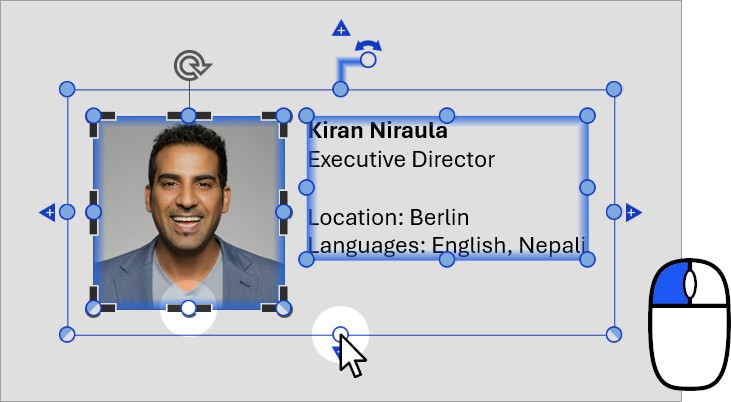
- If you lock the top edge of the outer selection frame, and the topmost elements in your selection are top-aligned, the top edges of these elements lock.
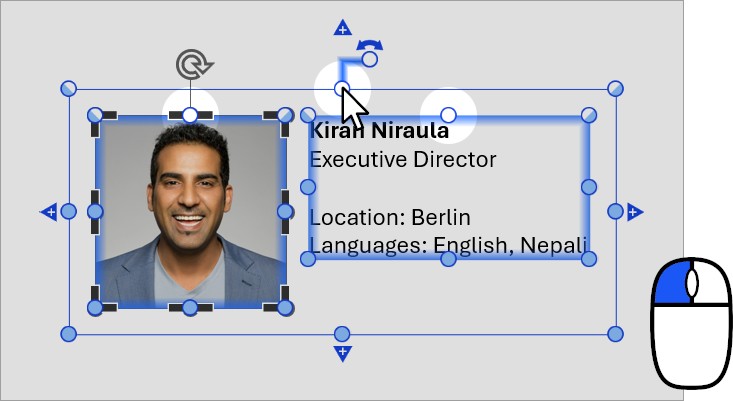


If aligned element edges are snapped together—like text-box edges in a table, for example—these edges always share the same locked or unlocked state. To lock or unlock aligned edges that are snapped together, use the resize handle of any aligned edge or the corresponding edge of the outer frame.

If aligned element edges are not snapped together, they can have different locked or unlocked states.

Need to troubleshoot?
Check our knowledge base