Slide templates
- Home
- Resources
- User manual
- Slide and image library
- Slide templates
The thinkcell Library comes with over 450 professionally designed slide templates and objects, including geographical maps, box plots, and decision trees. These templates automatically adapt to your slide master, which controls your presentation's colors, fonts, and overall design. Slide text and file names are searchable, so it's easy to find the slides that you want.

Insert slide templates into presentations
To insert a slide template into your presentation, follow these steps:
- In PowerPoint, make sure that you're in the Normal, Outline, or Slide Sorter view.
- Open the library: on the ribbon, go to the Insert tab. In the Slides group, select Library
 .
. - In thinkcell Library, select Slide Templates or one of its subfolders.
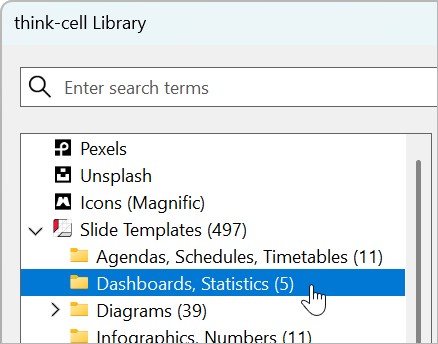

- In the search box, enter search terms.
-
You can insert a slide template with your presentation's formatting or the slide's original formatting:
- To insert a slide with your presentation's formatting, select the slide that you want to insert. Alternatively, hover over the slide and select Insert slide with destination formatting

- To insert the slide with its original formatting, hover over the slide that you want to insert, then select Insert slide with source formatting


- To insert a slide with your presentation's formatting, select the slide that you want to insert. Alternatively, hover over the slide and select Insert slide with destination formatting


The inserted slide appears after your current slide or at your selection between slides. You can now edit the new slide.
You can also insert the shapes and elements from a slide template onto your current slide, rather than inserting a new slide (see Insert slide objects from the library into presentations).
More search features
The thinkcell Library has several features to help you find the slide template that you want.
- Resize thumbnails: Zoom in to clearly see the details on a slide, or zoom out for a better overview of your results. To change the size of the thumbnails, hold Ctrl and rotate the mouse wheel to zoom in and out. On a touchpad, pinch and stretch.
- Result count: Next to the source folder and subfolders, you can see how many items match your search criteria.
- Highlighted slide text: On slide thumbnails, text that matches your search terms is highlighted in yellow.
- View search result metadata: To see a result's metadata, such as the file name and when it was last modified, hover over its thumbnail.
Need to troubleshoot?
Check our knowledge base