Tableau data links
- Home
- Resources
- User manual
- thinkcell Charts: Data visualization
- External data links
- Tableau data links
Tableau data links are available with thinkcell Suite.

When the source data for your thinkcell charts and other elements is available in Tableau, you can create charts and tables directly from Tableau. When data in Tableau changes, you can update the linked elements with a single click to reflect that change.
Requirements for linking to Tableau
You need access to a Tableau server to link a chart or table to Tableau data. thinkcell supports both on-premise and cloud hosted versions of Tableau. To link to filtered versions of a view, you need to be able to create and save custom views on the server on which the view is hosted.
thinkcell uses an interface to Tableau that is available in a browser window to extract the data represented in a Tableau view and makes the data available to a thinkcell element in place of its datasheet. This part of thinkcell's functionality is implemented as a browser extension, so you also need a supported browser and the thinkcell extension must be installed. Currently, the extension is available for Google Chrome, Microsoft Edge and Mozilla Firefox. It is installed automatically along with thinkcell into Chrome and Edge, and can be installed manually into Firefox (see Install the browser extension).
thinkcell can only import Tableau data from views displayed in a browser, not directly from Tableau Desktop.
Create elements from Tableau data
- Open a Tableau dashboard in your supported browser.
- Select the thinkcell extension icon:

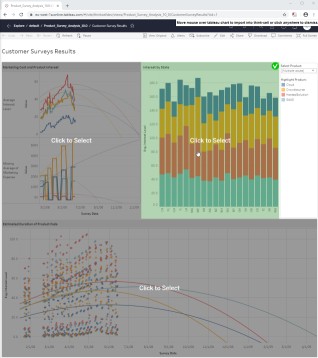
- The different views on your dashboard are detected and shaded in green when the mouse pointer is over them. Select a view.
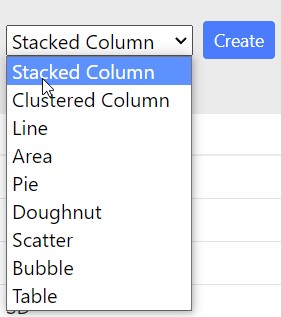
- A new tab is opened with the view's data. Select the element that you want to create.
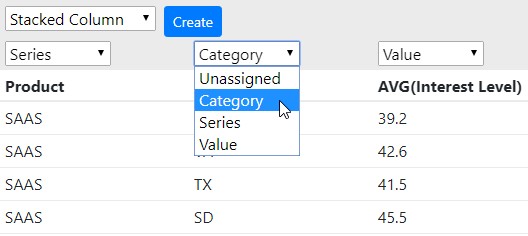
- Assign columns to the parts of the thinkcell datasheet pertinent to the chosen element type, i.e., for a stacked column chart, categories, series and values.
- Select Create to create a thinkcell element in PowerPoint.
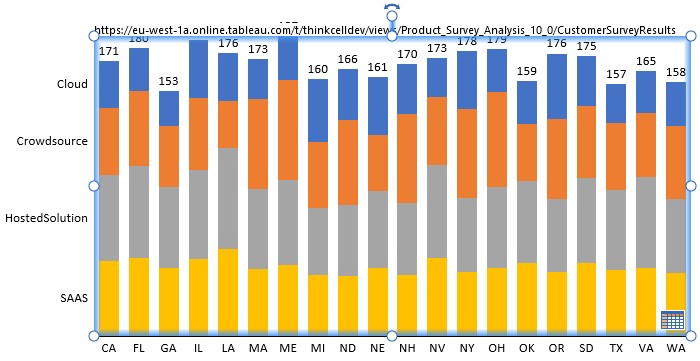


thinkcell remembers the connection to the Tableau data. Selecting the datasheet button of the element in PowerPoint will open the tab with the Tableau view in your default browser. In the browser tab, select Update to transmit updated data to PowerPoint. You can also start the data update from thinkcell's Data Links dialog or the element's mini toolbar (see Manage linked data with the Data Links dialog).

Need to troubleshoot?
Check our knowledge base