Configure thinkcell Assist
- Home
- Resources
- User manual
- Deployment guide
- Configure thinkcell Assist
Connect MCP servers to thinkcell Assist
As an administrator, you can share your organization's data sources, tools, and workflows with thinkcell Assist via Model Context Protocol (MCP) servers (see Understanding MCP servers). For example, you can configure MCP servers that let Assist work with data in an internal knowledge base.
thinkcell's MCP server configuration supports API-key authentication through HTTP headers specified as a JSON object. Authentication headers are optional and depend on the server. Public servers do not require authentication headers. Other authentication methods are not currently supported.
You can configure MCP server connections per machine, not per license key. Per-machine configuration gives you the flexibility to make a server available only to the users who need it—for example, you can ensure that a server with financial data is only available to the finance team.
Configure CORS on your MCP server
Because thinkcell Assist connects to MCP servers from a browser, each server must use Cross-Origin Resource Sharing (CORS) to permit cross-origin requests from Assist. If your server already permits these requests—for example, by allowing all origins—and includes the following CORS headers in its responses, no further configuration is needed. Otherwise, configure the following CORS response headers on your MCP server.
|
Header name |
Header value |
Required |
|---|---|---|
|
|
|
Always |
|
|
|
Always |
|
|
If the server requires authentication |
|
|
|
Always |
|
|
|
Always |
|
|
|
|
If the server returns an |
Add MCP servers to thinkcell Assist
To add MCP servers to thinkcell Assist, use the following configuration parameters.
On Windows, you can add MCP servers to thinkcell Assist using Group policies.
- Open the group policy setting thinkcell Assist: MCP Servers.
- Select Enabled.
- For each server that you want to add, specify the following:
- Name: Enter a name for the server.
- URL: Enter the server's URL.
- Headers (optional): If the server requires any HTTP headers for authentication, enter these here. Format the headers as a JSON object—for example,
{"API_KEY_HEADER_NAME": "SECRET_API_KEY"}.
- Select OK.
To disconnect an MCP server from Assist, in thinkcell Assist: MCP Servers, delete the server's name, URL, and headers. Then select OK.
To disconnect all MCP servers from Assist, in thinkcell Assist: MCP Servers, select Not Configured or Disabled. Then select OK.
On macOS, you can add MCP servers to thinkcell Assist by using the defaults command-line tool (see Installation on macOS) or by editing a .plist file for a device management solution (see Managed deployment on macOS).
In the following examples, replace the following:
MCP_NAME: A name for the serverMCP_URL: The server's URLMCP_HEADERS(optional): Any HTTP headers that the server requires for authentication. Format the headers as a JSON object—for example,{"API_KEY_HEADER_NAME": "SECRET_API_KEY"}.
When using the defaults tool, use the following command:
sudo defaults write /Library/Preferences/com.microsoft.office.plist com.think-cell.settings.assist -dict-add MCP1_Name -string '<var>MCP_NAME</var>' MCP1_URL -string '<var>MCP_URL</var>' MCP1_Headers -string '<var>MCP_HEADERS</var>'When editing a .plist file for a device management solution, use the following code:
<dict>
	<key>com.think-cell.settings.assist</key>
	<dict>
		<key>MCP1_Name</key>
		<string><var>MCP_NAME</var></string>
		<key>MCP1_URL</key>
		<string><var>MCP_URL</var></string>
		<key>MCP1_Headers</key>
		<string><var>MCP_HEADERS</var></string>
	</dict>
</dict>To configure multiple MCP servers, add each server's set of key-value pairs to the com.think-cell.settings.assist dictionary. Each set contains the keys MCPN_Name, MCPN_URL, and if needed, MCPN_Headers. Replace N with consecutive numbers starting at 1: MCP1_..., MCP2_..., MCP3_..., and so on. You can connect an unlimited number of MCP servers.
To disconnect all MCP servers from Assist, in the com.microsoft.office property list, delete the com.think-cell.settings.assist dictionary.
Verify MCP server connections
To verify that you have successfully connected an MCP server, follow these steps:
- Open PowerPoint or Excel.
- On the ribbon, select Insert > thinkcell > Assist
 .
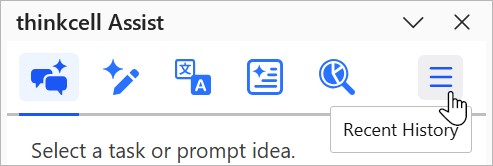
. - On the thinkcell Assist side pane, select the Recent History tab.
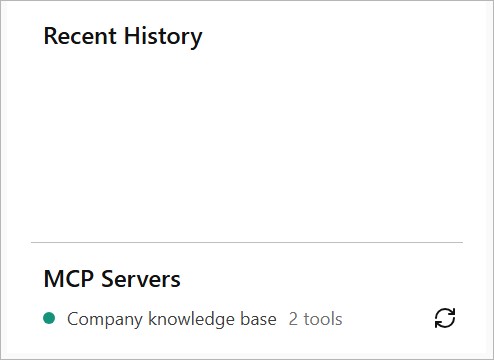
- At the bottom of the tab, confirm that the server appears in the MCP Servers list. A green status indicator means that the server is connected to Assist. A red status indicator means that there's a connection error.


Need to troubleshoot?
Check our knowledge base