thinkcell Assist in Excel
- Home
- Resources
- User manual
- AI-powered slides
- thinkcell Assist in Excel
thinkcell Assist is available with thinkcell AI Suite.
thinkcell Assist helps you work with data in Excel. Use Assist to analyze and transform data, and create charts and tables in PowerPoint.
Caution: The content that thinkcell Assist generates or transforms may not be accurate. To ensure accuracy, check the following details before you finalize your presentations and workbooks:
- For data analysis, verify key figures against the worksheet or the source dataset.
- For derived metrics, confirm formulas and units.
- For translations, review titles, labels, and terminology.
- For summaries and insights, confirm that claims match what the data shows.
Open thinkcell Assist in Excel
To open the Assist side pane, on the Excel ribbon, select Insert > thinkcell > Assist  .
.

Find information, analyze data, and transform sheets
Use the Assist side pane prompt box to find useful information, analyze workbooks, or transform data. Assist can perform multiple tasks from a single prompt. A prompt is the instruction or question that you enter in the Assist prompt box. For example, you can ask Assist to analyze a workbook, update values, and summarize the results.
To find information, analyze your workbook, or transform data using Assist, follow these steps:
- Open the Excel workbook that contains the data that you want to use.
- On the Excel ribbon, select Insert > thinkcell > Assist . The Assist side pane opens.
- In the Assist side pane prompt box, enter a prompt that describes what you need, then select Enter.
Use Assist to find information. Assist can search the web and generate explanations or suggestions to help you with technical concepts, Excel formulas, public information, or ways to present your data.
Example prompts
- How can I create a pivot table?
- What does VLOOKUP mean?
- Explain the differences between EBIT and EBITDA.
Result: Assist replies to your prompt on the side pane.

Use Assist to review data in a workbook and generate summaries, explanations, and insights. Assist can analyze data across one or more worksheets.
Example prompts
- Summarize the main financial trends in this workbook.
- Analyze the data across all worksheets and identify the three most important insights.
- Explain the key differences between the regional sales sheets.
Result: Assist returns a summary, explanation, or set of insights in the side pane based on the workbook data.

Use Assist to change or enrich workbook data. For example, you can ask Assist to convert values, update or create rows and columns of data, or implement Excel formulas.
Example prompts
- Convert all Euro values in this workbook to US dollars using today’s exchange rate.
- Group the revenue in this sheet by industry and region.
- Create a row calculating the profit margin.
Result: Assist creates a new worksheet named thinkcell and adds the updated data in the worksheet.


Create charts and tables in PowerPoint
Use Assist to create charts and tables in PowerPoint from your worksheet data. Assist can use the original data, or data that it derived or transformed based on your previous prompts.
To create a chart or table in PowerPoint from your Excel data using Assist, follow these steps:
- Open the Excel worksheet that contains the data that you want to use.
- On the Excel ribbon, select Insert > thinkcell > Assist . The Assist side pane opens.
- In the side pane prompt box, enter a prompt that describes the chart or table that you want, then select Enter. Assist reads the Excel data and creates a new worksheet named thinkcell that contains the chart data.
Buttons for the chart type or table that you requested and other thinkcell elements that fit your data appear on the side pane. - Select the element that you want Assist to create. PowerPoint opens.
- In PowerPoint, place the element on a slide.
Example prompts
- Create a table that summarizes the top five products by margin.
- Plot sale price versus square footage as a scatter chart.
- Show the percentage split between cost of revenue and gross profit per fiscal year as a stacked 100% chart.

Upload files
Upload workbooks, presentations, text files, and images as input for thinkcell Assist. To upload files to Assist, follow these steps:
- On the Excel ribbon, select Insert > thinkcell > Assist . The Assist side pane opens.
- Do one of the following:
- Drag one or more files to the Assist side pane.
- In the prompt box, select Attach files
 . In the Open dialog, select one or more files, then select Open.
- In the prompt box, enter a prompt that describes how you want Assist to use the uploaded files, then select Enter.
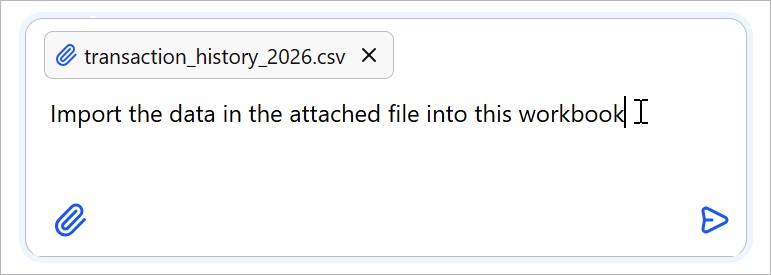

Assist analyzes the file and generates a response. Depending on your prompt, Assist may also update your workbook.
The following table lists the file types and formats that you can upload to Assist.
|
File type |
Supported formats |
|---|---|
|
Microsoft Office |
.pptx, .xlsx, .docx |
|
Image |
.jpeg, .jpg, .png, .gif, .webp |
|
Text |
.pdf, .txt, .md, .csv, .html, .json, .xml |
Access MCP servers in thinkcell Assist
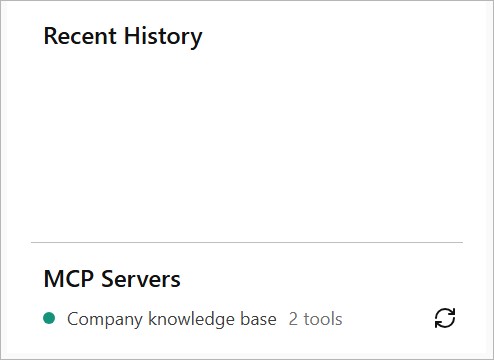
You can access additional data sources, tools, and workflows in thinkcell Assist via Model Context Protocol (MCP) servers. For example, using an MCP server, Assist can work with data from your organization's internal knowledge base.
Administrators and users with local administrative rights can Connect MCP servers to thinkcell Assist.
Depending on how an MCP server defines and authorizes its capabilities, you may be able to refer to these capabilities directly in your prompts. Otherwise, describe what you want to accomplish, and thinkcell Assist will determine whether to use the server's capabilities.
Check MCP server connection status
To check the connection status of MCP servers in thinkcell Assist, follow these steps:
- Open PowerPoint or Excel.
- On the ribbon, select Insert > thinkcell > Assist .
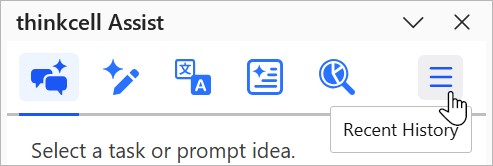
- On the thinkcell Assist side pane, select the Recent History
 tab.
tab.
- In the MCP Servers list, check the status indicator next to each server. A green indicator means that the server is connected to Assist. A red indicator means that there's a connection error.


Give feedback on a response
Help us improve thinkcell Assist by sharing your feedback on responses.
- On the Assist side pane, below the response, select thumbs up or thumbs down.
- Optionally, in the text box that appears, you can enter additional feedback that explains what worked well or what needs improvement.
- Select Send.

Need to troubleshoot?
Check our knowledge base