Installation and updates
- Home
- Resources
- User manual
- Installation and updates

This page explains how to install your personal copy of thinkcell for PowerPoint and Excel. To deploy thinkcell in a larger organization as an administrator, see our deployment guide.
System requirements
On Windows, thinkcell works with Microsoft Office 2013, 2016, 2019, 2021, or 2024 for Windows, with PowerPoint and Excel installed. thinkcell also works with the fully installed versions and Click-to-Run versions of the desktop Office apps in Office 365.
On Mac, thinkcell works with Microsoft Office 2019, 2021, or 2024 for Mac, and macOS Big Sur (11) or later. thinkcell also works with the fully installed versions of the desktop Office apps in Office 365.
The installation of thinkcell requires less than 300 MB of disk space.
First installation
Install thinkcell
Please close all instances of Microsoft PowerPoint and Microsoft Excel before installing thinkcell.
The installation can be started directly from the online source. When you download the setup file you may choose the following:
- Open in order to install the software directly from the internet.
- Save to Disk and start the installation by double-clicking the downloaded setup file.
On Windows, the installation wizard asks for the installation path, then copies the required files and updates the registry. If the installation wizard detects that you do not have sufficient privileges for a regular installation, a single-user installation will be performed. This means that thinkcell can only be used with your current Windows login name.
thinkcell uses the same language as in the menus and dialogs of your installation of Microsoft Office, provided that it is supported by thinkcell (see Language for more details). If it is not yet supported, English is used.
macOS: Grant permissions to thinkcell during installation and first start
In macOS Sequoia 15, Apple has implemented stricter security measures to better protect users. As part of the new security framework, thinkcell requires data access permissions during installation on macOS 15 and later.

Furthermore, on all macOS versions, thinkcell requires file access permissions when you first start PowerPoint and Excel. When prompted, grant permission by selecting Allow, otherwise, thinkcell won't run.

Enter the license key
The public version of thinkcell requires a valid license key, which expires after a fixed period of time. When you start PowerPoint with a thinkcell trial version for the first time, or when your license key has expired, you need to enter a valid license key.

Please visit our website or contact our sales team to order such a license key for the first time or as a renewal of your existing deployment. In any case, you can always click the Cancel button and continue using PowerPoint without thinkcell. To enter the license key later, click the Activate thinkcell

The setting Automatically report any thinkcell error and check if there is already an update for it controls error reporting (see Error reporting). We recommend to enable it to help us improve the software. No user data is included in the error report.
Install the browser extension
thinkcell comes with a browser extension to enable its Tableau data links functionality, and to import Images and icons from the web into PowerPoint. The extension is available for Google Chrome, Microsoft Edge, and Mozilla Firefox.
The extension is automatically installed into Chrome and Edge when thinkcell is installed. For security reasons, extensions installed in this way need to be enabled manually.
When first starting Chrome after installing thinkcell:

- Click Error ⋮ to open the menu, if it is not open already.
- Click New extension added (thinkcell).
- Click Enable extension to complete the installation of the extension.
When first starting Edge after installing thinkcell:
- Click Turn on extension to complete the installation of the extension.
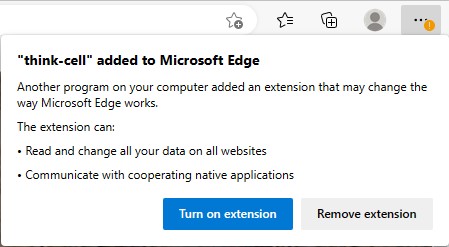

Note: When you choose to remove the extension, and decide later on that you want to use it after all, you will need to manually install it from the Chrome Web Store or from Edge Add-ons. This is true even if you (un- and then) reinstall thinkcell.
For Firefox, you need to manually install the thinkcell extension:
- Open the thinkcell extension page in Firefox. Alternatively, you can go to ≡, then select Add-ons and themes, then search for "thinkcell" and navigate the result list.
- On the thinkcell extension page, click Add to Firefox
- In the dialog asking for permissions, answer Add.
- In the confirmation dialog, click Okay to complete the installation of the extension.
Automatic updates
Every time that you open PowerPoint or Excel with thinkcell installed, thinkcell checks once for updates. If a new release is available, thinkcell attempts to download and install the updated installation file.
The automatic download runs in the background and only occupies unused bandwidth. If the internet connection is interrupted or there is other network traffic, thinkcell pauses the download until you're back online.
thinkcell digitally signs all files that are executed and installed as part of an automatic update.
To manually check for thinkcell updates, on the PowerPoint ribbon, go the Insert tab. In the thinkcell group, select Tools
Troubleshooting
For the latest information on known issues and workarounds, please visit our knowledge base.
If you can't find a solution in the knowledge base or the user manual, feel free to contact our support team. To do so, follow these steps:
- On the PowerPoint ribbon, go to the Insert tab. In the thinkcell group, select Tools

- In the Request Support dialog, attaching slides to your request often helps us address your problem. We recommend that you select one of the following:
- Selected Slide or Selected Slides: Select one or more slides where you're experiencing the problem, then select this option.
- Entire Presentation: Select this option if you're experiencing the problem in your entire presentation.
- Select Compose Email. Your email application will create an email that's ready to send to our support team.
Error reporting
At thinkcell, we are committed to stability and robustness as key factors for the professional use of our software. When an error condition arises while you are using thinkcell, the software automatically generates a report that helps us to understand the problem and fix it in the next release. The error report only contains information about the internal state of our software. No user data is included in the error report.
The software sends the error report encrypted. You might notice a short delay while an error report is being sent, but in most cases you can continue using thinkcell as usual.
If an update that addresses the error you encountered is already available, it will be installed automatically.
For more information on thinkcell’s automated error reporting refer to section Error reporting.
Temporarily deactivate thinkcell
To quickly work around compatibility problems, or other issues arising from the use of thinkcell, you have the option to temporarily deactivate thinkcell without uninstalling the software.

In the Tools  menu in the thinkcell ribbon group in PowerPoint, there is an option called Deactivate thinkcell. When you select this option, thinkcell will be deactivated immediately. With thinkcell deactivated, charts are presented as regular PowerPoint shapes. To re-enable thinkcell, click the Activate thinkcell
  button in the thinkcell ribbon group in PowerPoint. There is no need to close the PowerPoint application in order to switch between thinkcell and plain PowerPoint.
Before you alter thinkcell elements without thinkcell, be aware of potential compatibility issues (refer to Share presentations with users who don't have thinkcell).
Note: You do not need to deactivate thinkcell in order to make your presentations accessible to coworkers or clients who may not have thinkcell installed. Simply send them the same file you are working with—if thinkcell is not installed, they will find a presentation with regular PowerPoint shapes.
Need to troubleshoot?
Check our knowledge base