Choosing the right presentation library: From templates to icons
- Home
- Resources
- Content hub
- Choosing the right presentation library: From templates to icons
11 min read — Anthony Karge
Nobody likes hunting through old email threads looking for that one slide a colleague made six months ago. Or presenting a deck with the wrong logo, last year’s color palette, and low-resolution images sourced from a quick Google search.
These challenges can all be solved with a presentation library.
A well-built presentation library of templates, icons, and visual assets can be hugely beneficial for productivity and presentation consistency. This article explains how professionals like you can evaluate the most important features for choosing the best possible presentation library.
Access the ultimate presentation library
- Access all your favorite slides, images, and presentation resources.
- Never start from a blank slide with 250+ professional templates.
- Find exactly what you need with slide-level search and powerful filters.
- What is a presentation library?
- What kind of organizations need a presentation library?
- The must-haves of any presentation library
- Choosing the ideal slide templates from a presentation library
- Selecting the best icons and images from a presentation library
- Easily accessing your presentation library
- Encouraging adoption of your presentation library
- The best presentation library for your team
- Presentation library FAQ
What is a presentation library?
A presentation library is a centralized and searchable collection of slides, templates, images, icons, and other visual assets used to build presentations. Using a library is the equivalent of a well-organized filing system instead of searching through a chaotic and cluttered storage room.
With a presentation library, everything a team needs to present professionally is in one place and ready to use, helping make a business impact.
What kind of organizations need a presentation library?
For individuals, a presentation library saves time and removes the frustration of starting from scratch. For large enterprises, the benefits are even greater because large organizations have more teams, more presentation assets and, in many cases, less efficient collaboration due to their size.
As an organization scales, the chance of outdated or off-brand assets being used is higher. At the same time, it becomes harder to find relevant materials.
A presentation library as an enterprise solution ensures that every deck reflects the same brand standards, uses the same approved assets, and maintains a consistent level of quality.
The must-haves of any presentation library
When a library is part of your presentation stack, you can easily access all the visual elements needed to tell your story and create slides quickly. Three components are important when deciding the best presentation library:
- Slide templates: Avoid starting presentations from scratch. Instead, build off of templates to quickly get started.
- Icons and graphics: Well-placed visual elements, whether industry-related photos, icons, or country flags, can bring clarity and aesthetics to your presentation.
- Ease of use and access: A presentation library will be most effective if you and your colleagues can always pinpoint exactly what you’re looking for.
Choosing the ideal slide templates from a presentation library
Before creating a presentation, many people waste time staring at a blank slide, wondering where to start. A common solution is to work with slide templates to kick things off.
Having a wide range of slide templates to choose from is important, but that’s just one aspect of a presentation library. Quantity doesn’t always mean quality. Slide templates that are relevant to your business needs, while still being customizable, save time and mental energy.
When dealing with a blank slide to dig through old presentations and grab the best slides, which is often a tedious process.
Your presentation library would make all these favorite slides easy to find and repurpose.
Some of the most needed assets to start a presentation include:
- A master company presentation with all templates.
- Individual slide templates (e.g., timelines, processes, organizational charts, etc.).
- Team or function-based slides (e.g., sales pitches, strategy slides, marketing materials – ideally all organized into folders).
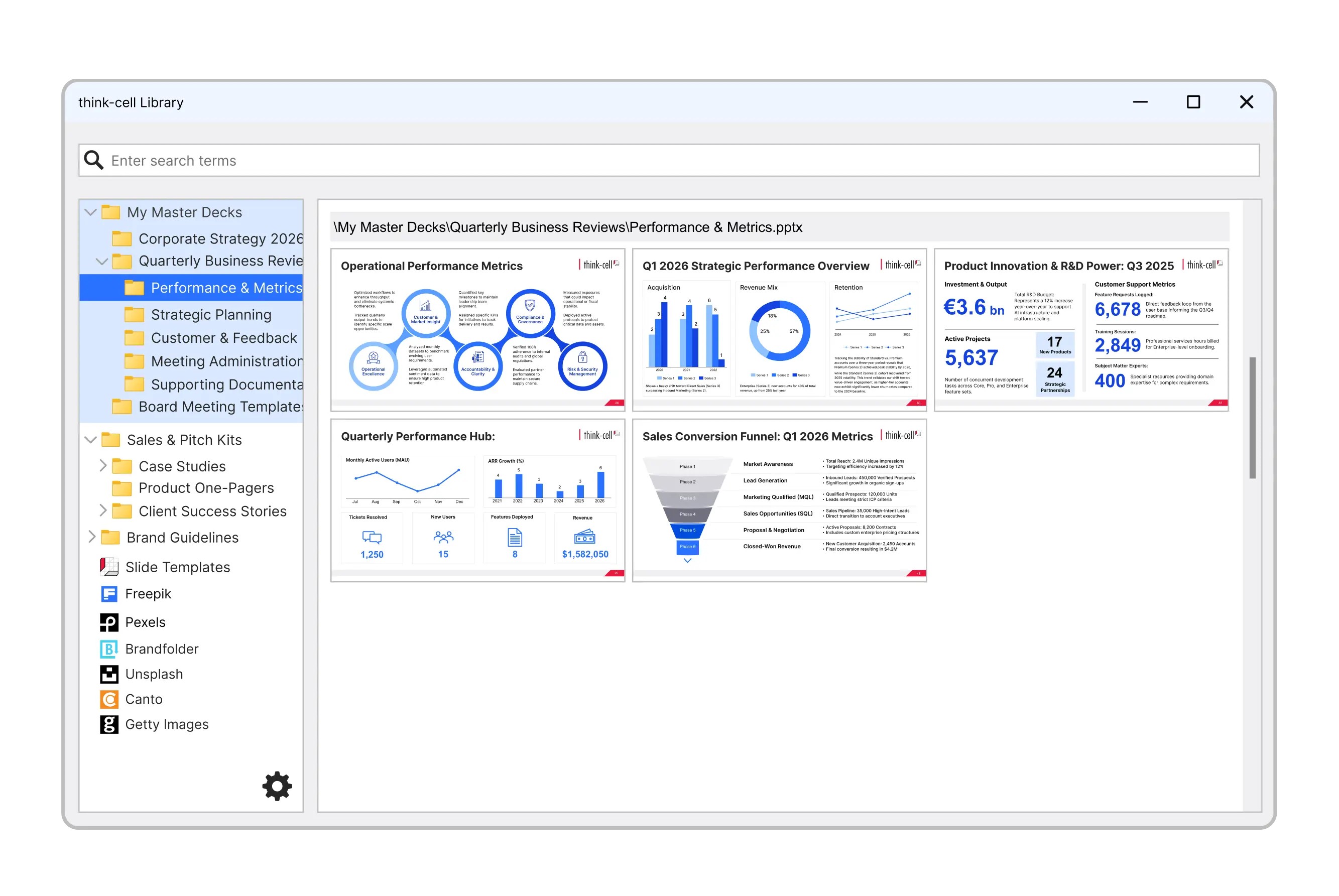
How think-cell helps: Imagine you need to complete a SWOT analysis slide by the end of the day. Instead of rebuilding from scratch or digging through a shared drive, open the think-cell Library, search "SWOT" and quickly add your content to a professionally designed template, confident that it’s brand-consistent and ready to present.
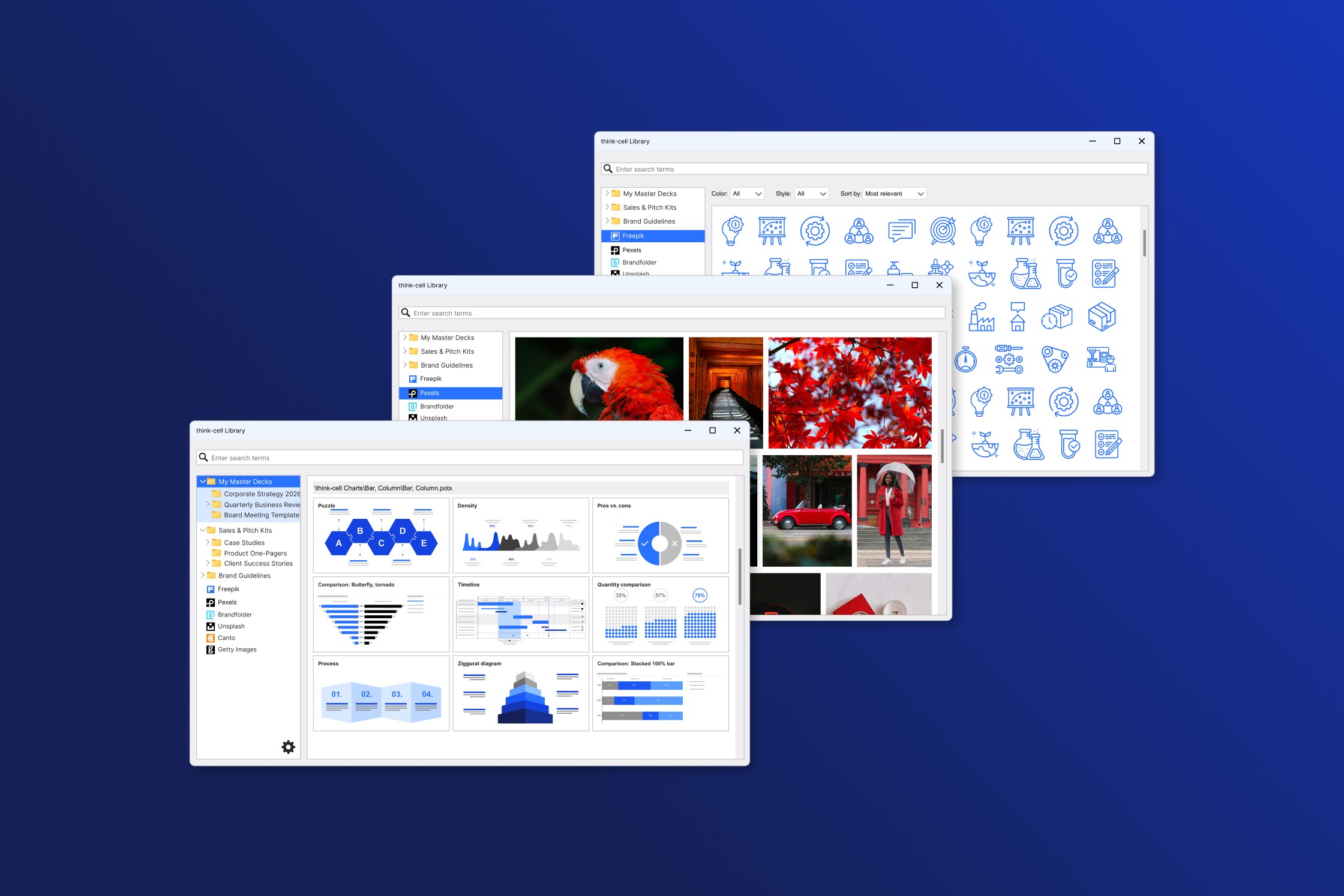
The think-cell Library offers more than 250 professionally-designed templates that cover all the most common business presentation scenarios. You can also quickly access all your favorite slides, images, and assets to build presentations faster.
Selecting the best icons and images from a presentation library
Studies show that images are more memorable than text, so well-chosen visual assets can help the audience retain the information from your presentation. The two main kinds of simple visual assets used in presentations, besides data visualizations, are icons and images.
An icon is a graphical symbol that can be used to represent ideas, concepts, or actions in a presentation. These can help bring clarity and a visual flair that reinforces the point you’re trying to get across.
Similarly, an image – even if it’s a stock photo – can help improve the communicative power of your presentation by complementing the text content of your slides.
Most people rely on Google when looking for images or icons for their presentations, but online search can sometimes be a time sink when:
- You find the right image, but it has a watermark or unwanted logo.
- You have an icon that looks transparent but isn’t.
- You can download an image, but you don’t have the right to use it.
- You have to pay for the image or icon.
- The image or icon is too low resolution to be used.
A presentation library that avoids these issues by giving you access to free, high-quality images is essential to saving time and building better presentations.
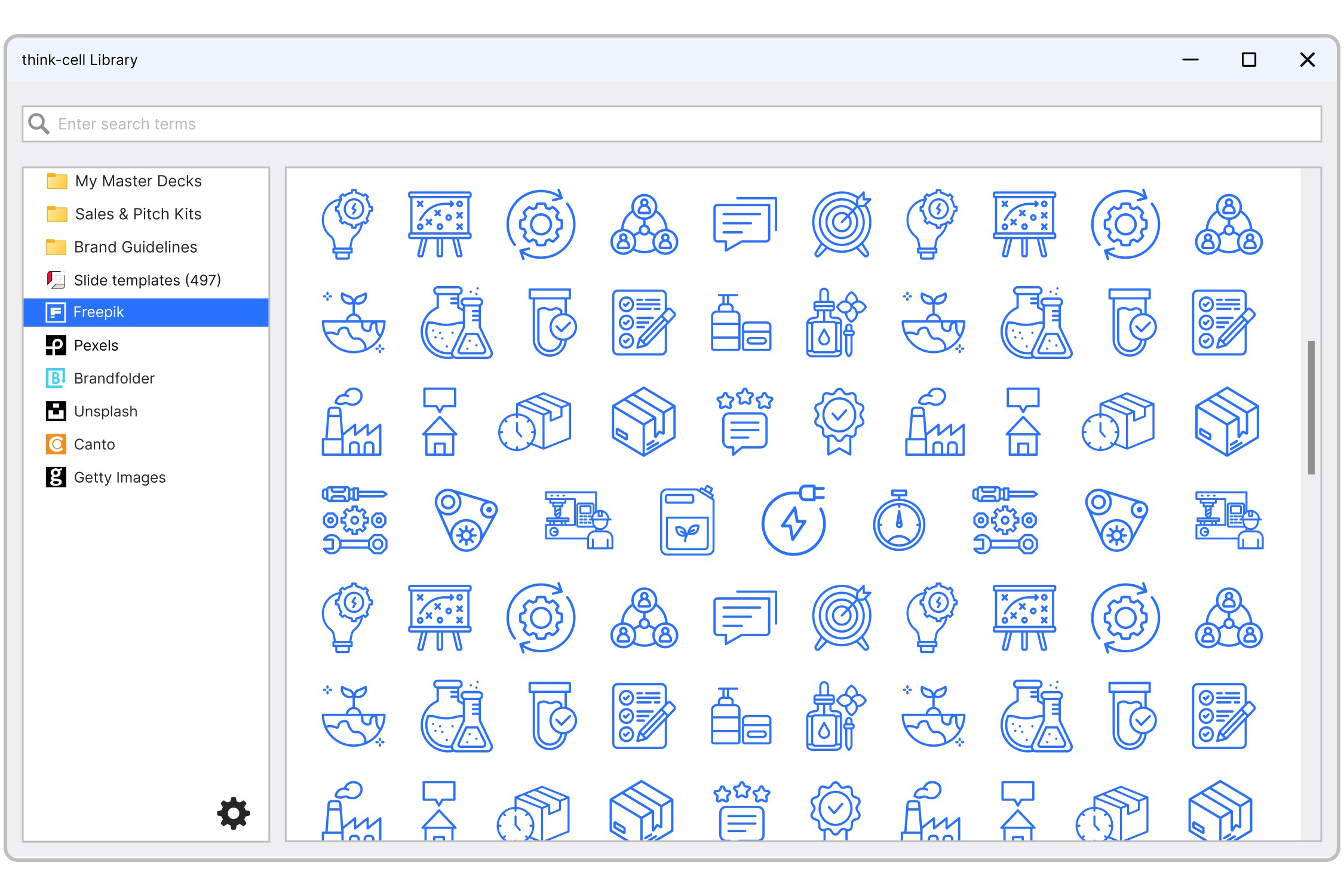
How think-cell helps: You’re building a proposal for a client and need some images to improve the slides. Rather than leaving PowerPoint to search Google, and risking watermarks, licensing issues, or low-res files, you can search directly within think-cell and drop in a clean, rights-cleared image in one click.
With think-cell Library, you can access millions of images and icons directly within PowerPoint.
Easily accessing your presentation library
Having endless images, icons, and slides to choose from can be just as paralyzing as starting with a blank slide if you don’t have an efficient way to search and filter assets.
Any good presentation library should have a search function that doesn’t look at file names alone. It should also query the text within presentations, so you can search based on content and have the right slides show up.
Presentation libraries can also be highly effective collaboration tools, as they can include folders with presentations that the whole team can access. Shared repositories that can save the whole team valuable hours whenever they need to easily find a slide a colleague has made.
Finally, you’re wasting precious time if you need to leave PowerPoint to find what you need. Any good presentation library needs to be convenient and readily accessible, without interrupting your presentation workflow.
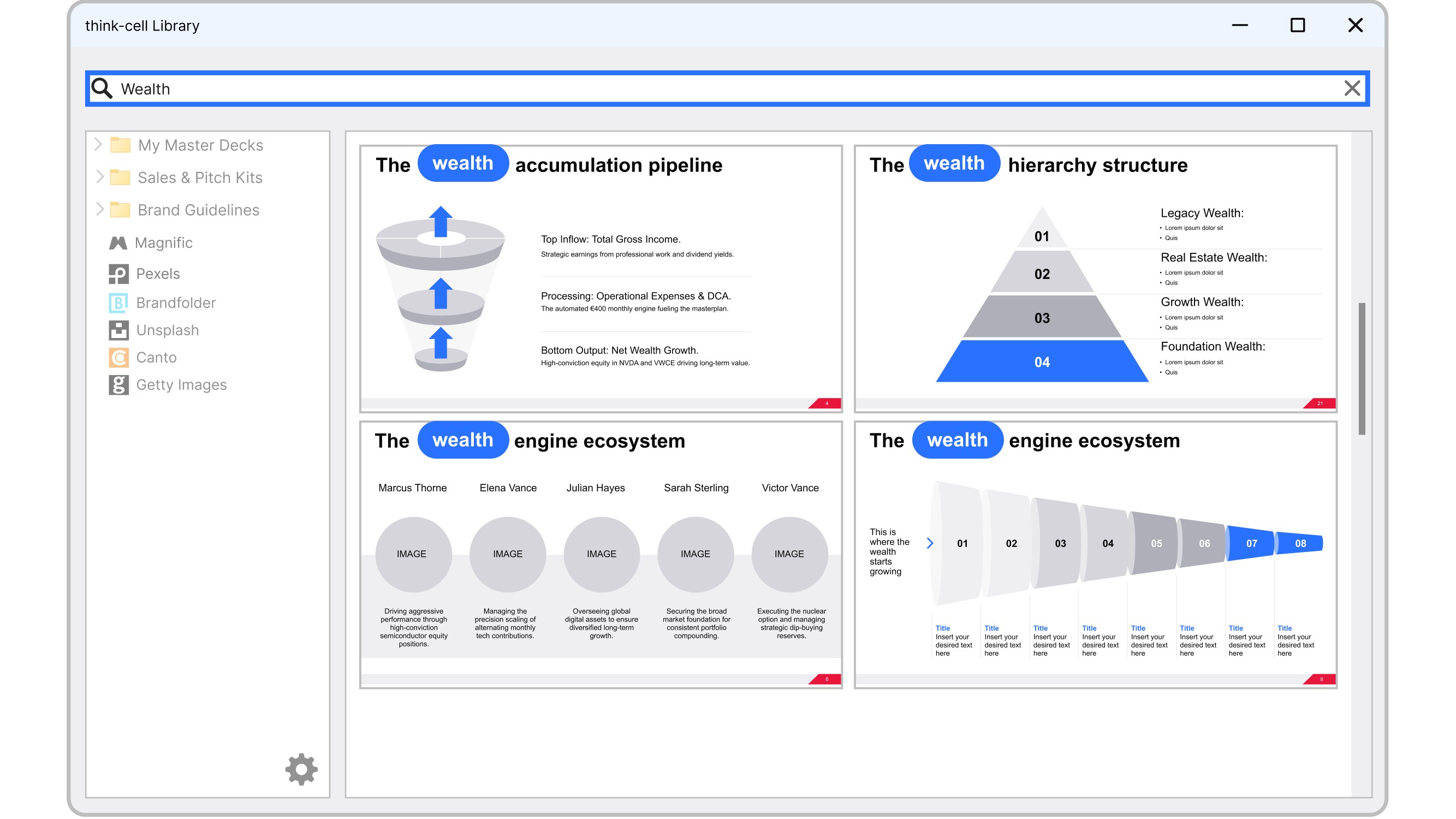
How think-cell helps: A new team member of yours needs to build their first quarterly business review deck. Rather than asking three colleagues for their "best slides" and waiting hours for responses, she searches the shared library by topic, finds the approved slides the team already uses, and quickly produces a working draft.
The think-cell Library offers sophisticated search and filter options to help you find the slide or resource you need, whether internal or external. Increase collaboration with easy-to-find slides that can be accessed by users throughout the organization.
Encouraging adoption of your presentation library
Rolling out an enterprise-grade presentation library is one thing. Getting everyone to use it is another challenge entirely.
To encourage adoption, you have to ensure that:
- The presentation library is easily accessible, ideally directly within PowerPoint.
- Deployment is centralized, making it easy for any user to get access.
- Robust trainings and onboarding materials are available to help get everyone started.
How think-cell helps: You decide to save you and your team’s time by purchasing the think-cell Library. Getting started is easy.
Through centralized deployment, IT can easily give access to select users. Once they have access, each member can quickly get up to speed through the user manual or specialized learning paths. Soon, everyone can start building consistent, on-brand slides with your enterprise presentation library.
The best presentation library for your team
The hours you spent hunting for slides, reformatting old decks, and rebuilding work that already exists don’t need to be wasted again.
Being able to build off strong existing work rather than starting each slide from scratch helps build a foundation for effective presentations. It also ensures brand consistency throughout your organization.
To help you evaluate the best presentation library for your organization’s needs, use this checklist to determine the best solution.
Presentation library evaluation checklist
|
Feature |
Must-have |
Nice-to-have |
|---|---|---|
|
Pre-made slide templates |
✅ |
|
|
Centrally-managed asset repository |
✅ |
|
|
Shared team repositories |
✅ |
|
|
Hierarchical directories and subdirectories |
✅ |
|
|
Advanced search and filters |
✅ |
|
|
Full PowerPoint integration |
✅ |
|
|
Onboarding materials |
✅ |
|
|
Vast selection of icons and images |
✅ |
|
|
Brand consistency tools |
✅ |
|
|
Ability to save and reuse favorite slides |
✅ |
|
|
Centralized IT deployment |
✅ |
|
|
Automatic updates |
✅ |
|
|
User-level customization |
✅ |
|
|
Data protection |
✅ |
|
|
Adheres to existing folder permissions |
✅ |
Presentation library FAQ
Here are some frequently asked questions about choosing presentation libraries.
What's the difference between a presentation library and a shared drive?
A shared drive stores files, while a presentation library is built specifically for finding and reusing presentation assets quickly. With a shared drive, you need to know the file name or folder structure. A presentation library like think-cell Library lets you search and filter by topic, author, and other criteria. For teams that present regularly, the difference shows up in hours saved every week.
How do teams keep presentation templates consistent across departments?
The most effective teams centralize their approved templates, slides, and brand assets in a single presentation library. Rather than emailing decks around or maintaining multiple versions of a master presentation, a shared library ensures that every team member has what they need. With the think-cell Library, it’s easy to create a shared repository that can be easily accessed.
How do I stop employees from using off-brand slides in client presentations?
The most reliable fix is removing the friction that causes off-brand slides to happen in the first place. Employees use whatever they can find quickly, whether it’s on brand or not. When approved, on-brand slides are easy to find they become the natural first choice.
Can I use a presentation library without leaving PowerPoint?
Yes, and it’s an important feature to look for. A presentation library that lives outside PowerPoint adds friction to an already high-pressure workflow. The best presentation libraries are integrated directly into PowerPoint, so you can search for slides, browse images, and drop in assets without ever switching windows or breaking your flow. That’s how the think-cell Library was built.
How do I choose effective visuals without overcrowding slides?
Even when you have access to millions of design elements, it’s best to limit each slide to a single main idea. Use clear, accessible designs with legible fonts and consistent colors to avoid overwhelming your audience. Ensure that each slide is consistent with your company’s brand and the other slides in the presentation. You can read more about making effective slides in this blog post.
When is an icon or image suitable for presentations?
Choose high-resolution, copyright-cleared, professional icons and images that reinforce your message and remain clear and legible within your slides. Tailor your icons and images to your audience and ensure that icons and images complement the core idea, rather than distract from it.
How can I evaluate visuals for clarity and impact?
Select informative graphics that match your audience’s needs, organizing them for logical flow and using clear labels and color palettes for easy comprehension. The five-second rule is a good practice when building slides: if the main message of the slide can’t be understood in five seconds, it’s best to simplify further.
Start a free trial and build polished presentations, faster
- Create complex charts, like Waterfalls and Gantt charts, in minutes.
- Full access to 250+ slide templates, smart layouts tools, and automation.
- Make your best slides more effective with AI tools build for slide work.
Explore this topic further with AI:
Read more
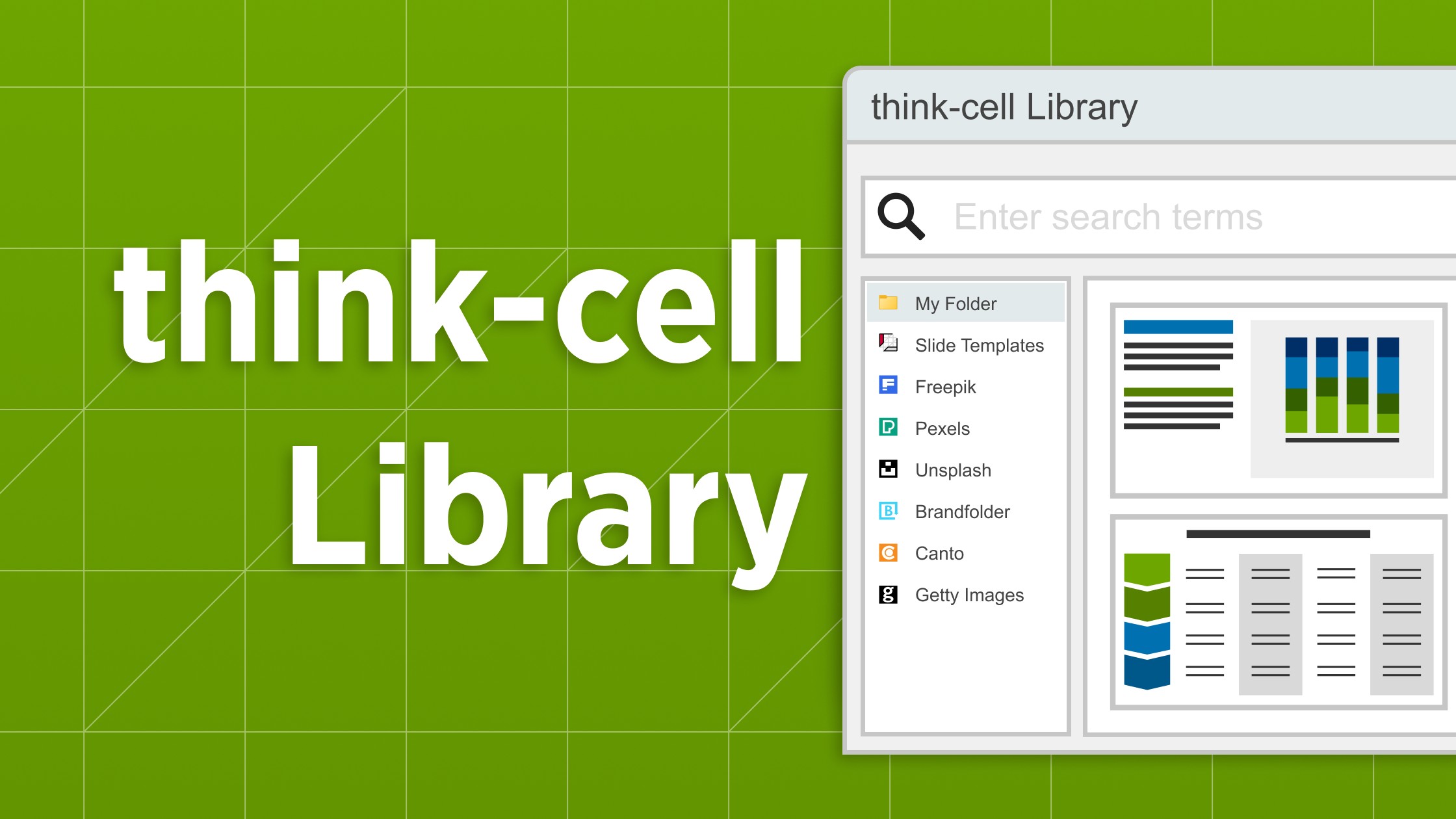
Explore the think-cell Library and see how you can save time, search effectively, and access a wealth of resources to ensure you never have to start your presentation from a blank slide again.

Learn the value of corporate identity and brand compliance in PowerPoint presentations and discover how think-cell helps teams effortlessly stay 100% on-brand.

Learn how to choose the best free PowerPoint icons and see how to make each icon your own with customization options.

Discover the best visualizations and charts for your slides that can tell a story and resonate with your audience.
Global survey of 1,200 professionals in 12 countries into how AI is used in presentation workflows.