How to add and customize free icons in PowerPoint presentations
- Home
- Resources
- Content hub
- How to add and customize free icons in PowerPoint presentations

10 min read — Anthony Karge
Adding attractive icons to your slides can increase the impact of your message and improve clarity.
A great PowerPoint presentation successfully makes an argument, convinces an audience, or drives better decision-making. Well-organized and easy-to-understand slides are essential to engage audiences. Icons can help with this.
In this article, you’ll learn how to add free icons to your presentation, both with PowerPoint and with think-cell, and how to customize the icons.
Choose from millions of icons for your next presentation
- Access all your favorite slides, icons, and presentation resources.
- Never start from a blank slide with 250+ professional templates.
- Find exactly what you need with slide-level search and powerful filters.
Why use icons in PowerPoint presentations?
Every aspect of your PowerPoint slide impacts how it will land with audiences.
A confusing and poorly laid-out slide frustrates rather than informs. Good headlines, charts, and layouts all play an important role in ensuring that your slides are easy to follow. Icons are no different.
When used thoughtfully, icons can help bring clarity to your slides. Icons can highlight key points, break up lengthy sections, and illustrate concepts that would otherwise take time to explain.
Some of the most-used types of icons, particularly in business presentations, include:
|
Type of icon |
Overview |
Example |
|---|---|---|
|
Flag icons |
Show countries or regions. Very useful in otherwise text-heavy slides. |
|
|
PowerPoint person icons |
Offer a wide range of uses, such as representing personas or stakeholders. |
|
|
Process and structure icons |
Make complex processes easier to follow. |
|
|
Progress trackers |
Help clearly show the progress of a task or project. |
|
|
Industry-specific icons |
Represent industries or departments. |
|


Icons should only be used when they serve a purpose by adding clarity. Beware of icons that only create clutter or confusion, rather than improving messaging. In a business presentation, off-brand or unprofessional icons should be avoided.
How to insert free icons into PowerPoint
PowerPoint comes equipped with thousands of icons across categories such as people, communications, arrows, and more. These free icons range from fairly casual to professional. The PowerPoint icon library is available in both Windows and Mac versions.
To add PowerPoint icons to your presentation:
- In the Insert tab, go to Icons. This may be under “Illustrations” depending on your version of PowerPoint.
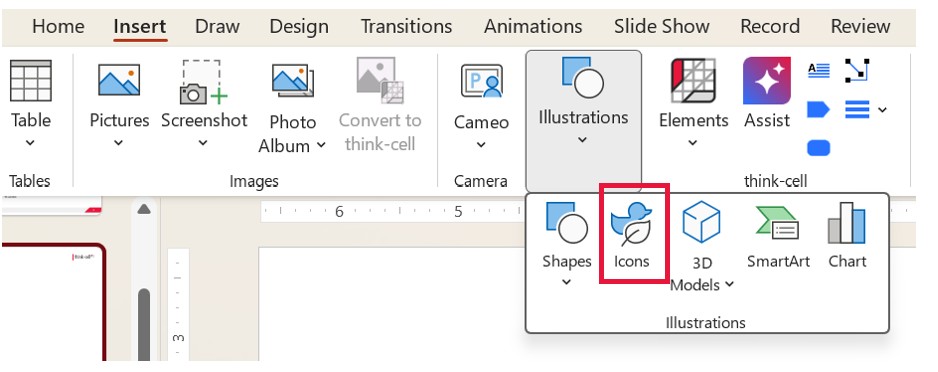
- Scroll through or search for the icon of your choice.
-
Once you find what you need, select the icon (or icons) and click the Insert button.
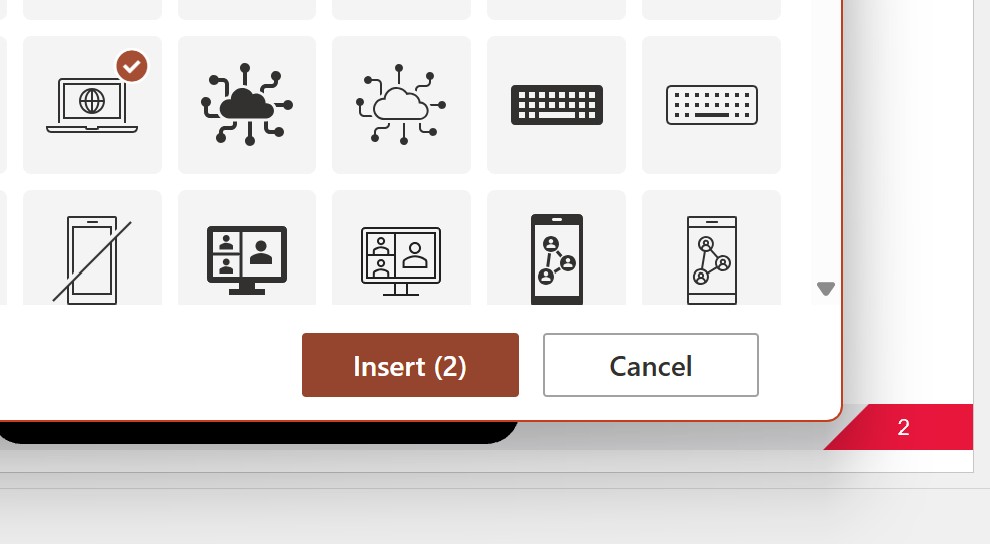
- Adjust the location and size of the icon as needed. Since PowerPoint icons are SVG files, they can be easily scaled up or down without losing quality.
How to customize icons in PowerPoint
If you don’t find exactly the free PowerPoint icon you’re looking for, you have some customization options to create what you need.
How to change an icon's color
The easiest way to customize an icon is by changing the color. You might want to change the color to meet brand guidelines, make the icon stand out, or just because certain colors might look better than a simple black and white.
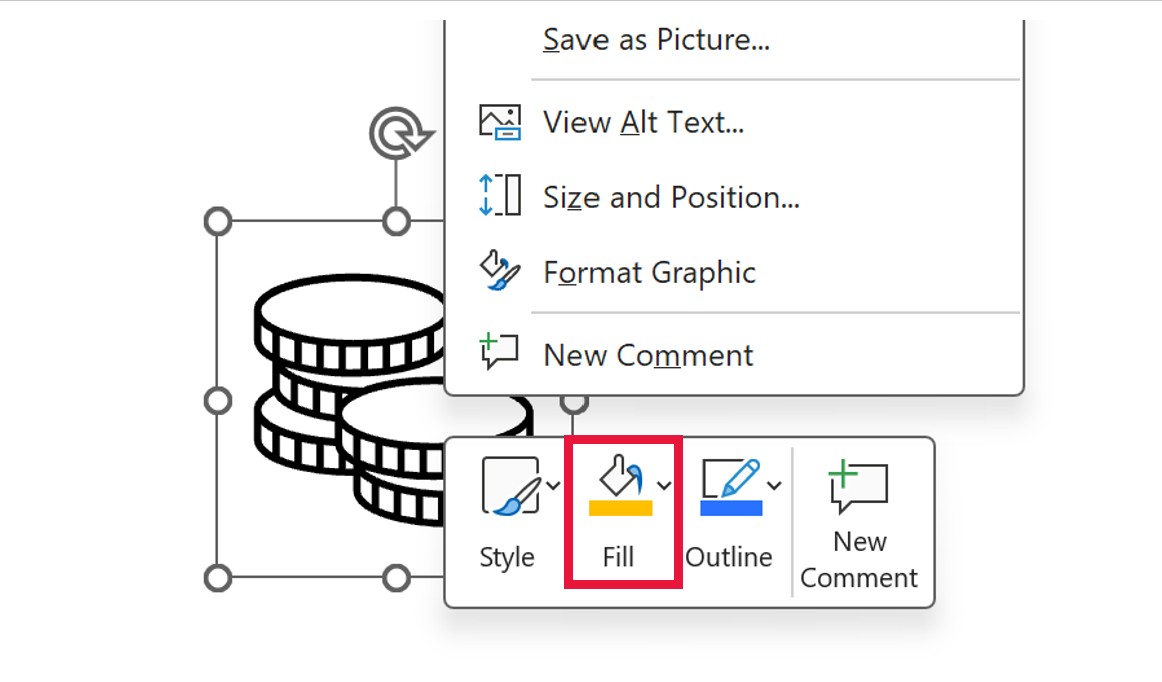
To change the color, right-click on the icon on your slide and select Fill. Here you can choose the icon’s color. You can also change the outline’s color while retaining the original color. Conveniently, the default colors for Fill or Outline will be based on your theme’s colors.
How to convert an icon to a shape
Another way to customize your icons is to convert the icon to a shape. When you do this, PowerPoint will often convert the icon into several separate shapes for the individual elements of the icon.
These icons are grouped, but each part can be ungrouped as needed. Now, you can change the color and size of each shape, while also deleting the ones you don’t need.
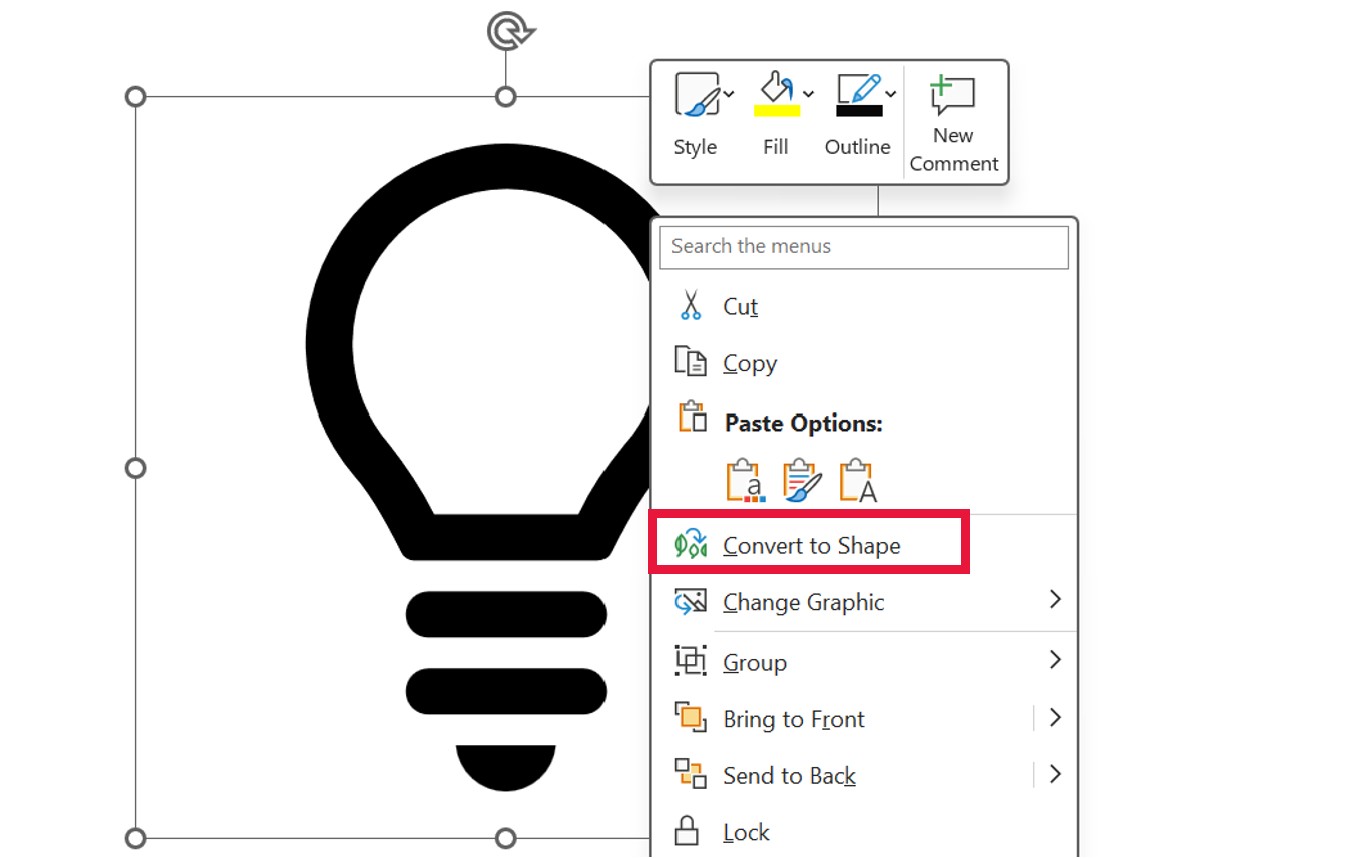
Right click on your icon and select “Convert to Shape.” Now, you can move, color, or scale the individual elements of the icon. In this example, the light bulb icon is switched to yellow, while the lower section remains black.

How to add free icons to PowerPoint with think-cell
With the think-cell Library, you can search and filter more than 10 million icons from Magnific (formerly known as Freepik) for free. This vast collection of icons covers just about every use case. Here’s how you can get started if you’re a think-cell user.
- Open the think-cell Library by going to the think-cell ribbon tab in PowerPoint.
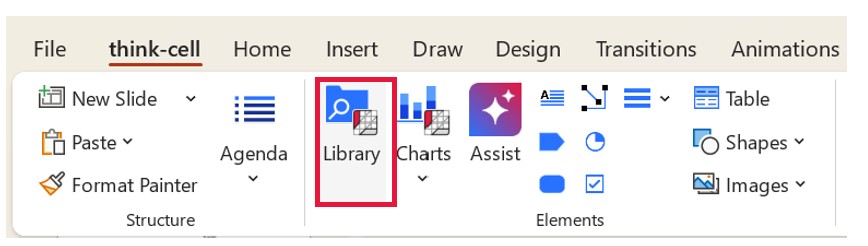
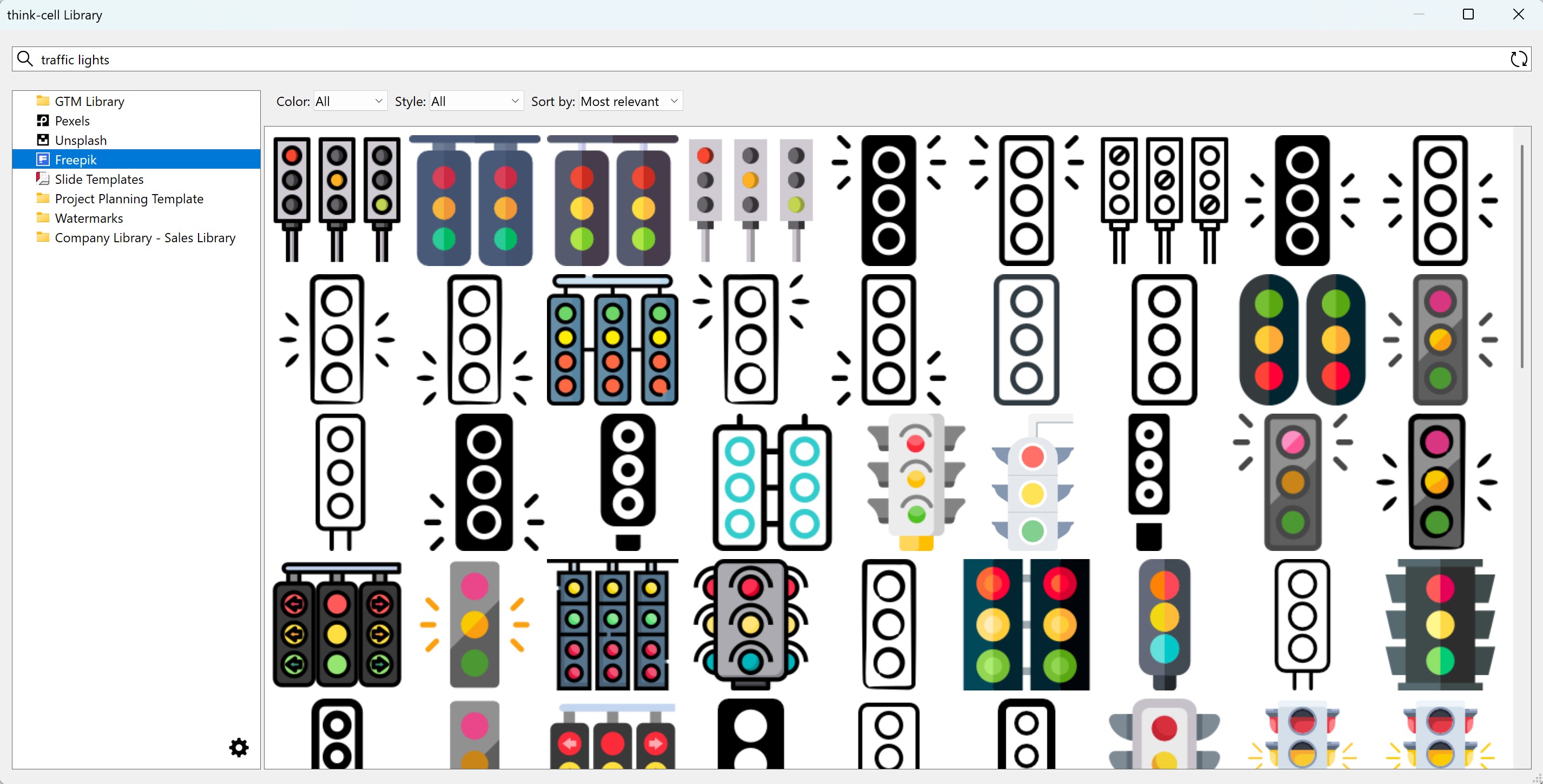
- In the think-cell Library, select Magnific (or Freepik). In the search box, you can enter keywords describing the icon you’re looking for.
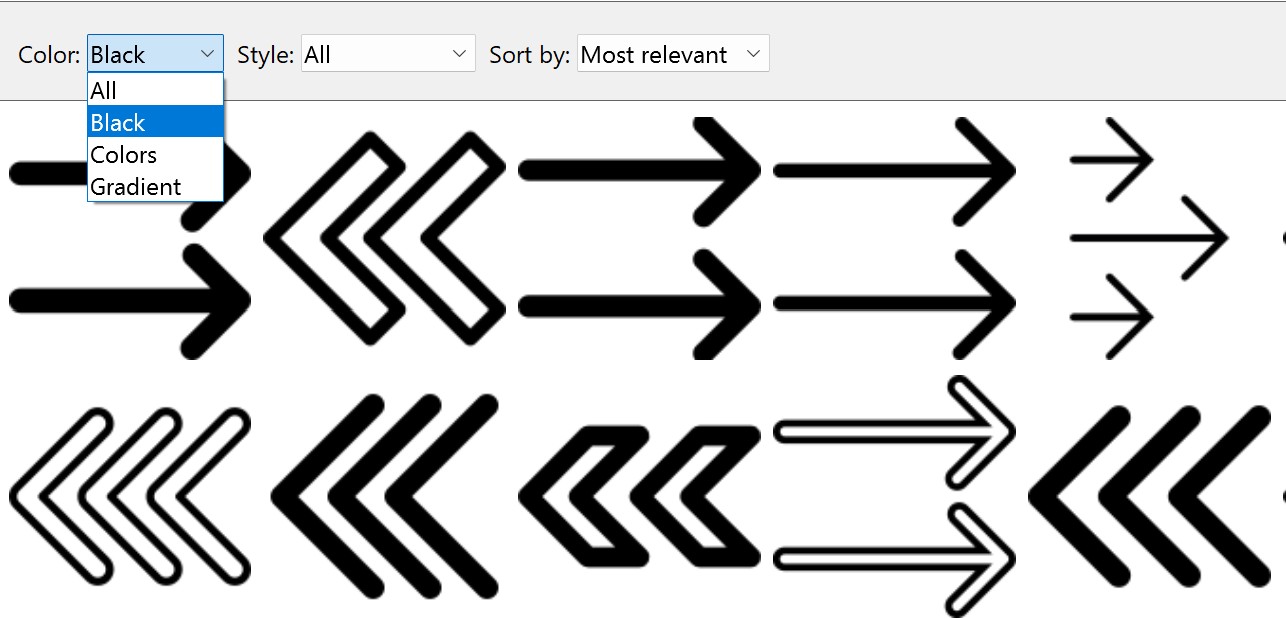
You can also filter to find precisely the icons you need.
- Color: Select Black, Colors, Gradient, or All.
- Style: Select Outline, Fill, Lineal color, Hand drawn, or All.
- Sort by: Select Most relevant or Recent.
- Select your chosen icon and then click on the slide where you’d like to add it.
After you’ve added your icon, you can customize it. Change the color, convert to a shape for more flexibility (as described in the previous section), or resize as needed.
For more about adding icons with think-cell, check the user manual or watch this video tutorial in the think-cell Academy.
Build better presentations with PowerPoint icons
A great idea poorly communicated rarely goes far within an organization. Well-placed and wisely-used icons are a key part of the visual aspect of a presentation and can be critical in bringing clarity and understanding to your target audience.
Use free icons to quickly turn a complex or cluttered slide into something easy to follow. Customize your icons to put your individual stamp on every presentation, while staying consistent and on brand.
Start a free trial and build polished presentations, faster
- Create complex charts, like Waterfalls and Gantt charts, in minutes.
- Full access to 250+ slide templates, smart layouts tools, and automation.
- Make your best slides more effective with AI tools build for slide work.
Explore this topic further with AI:
Read more
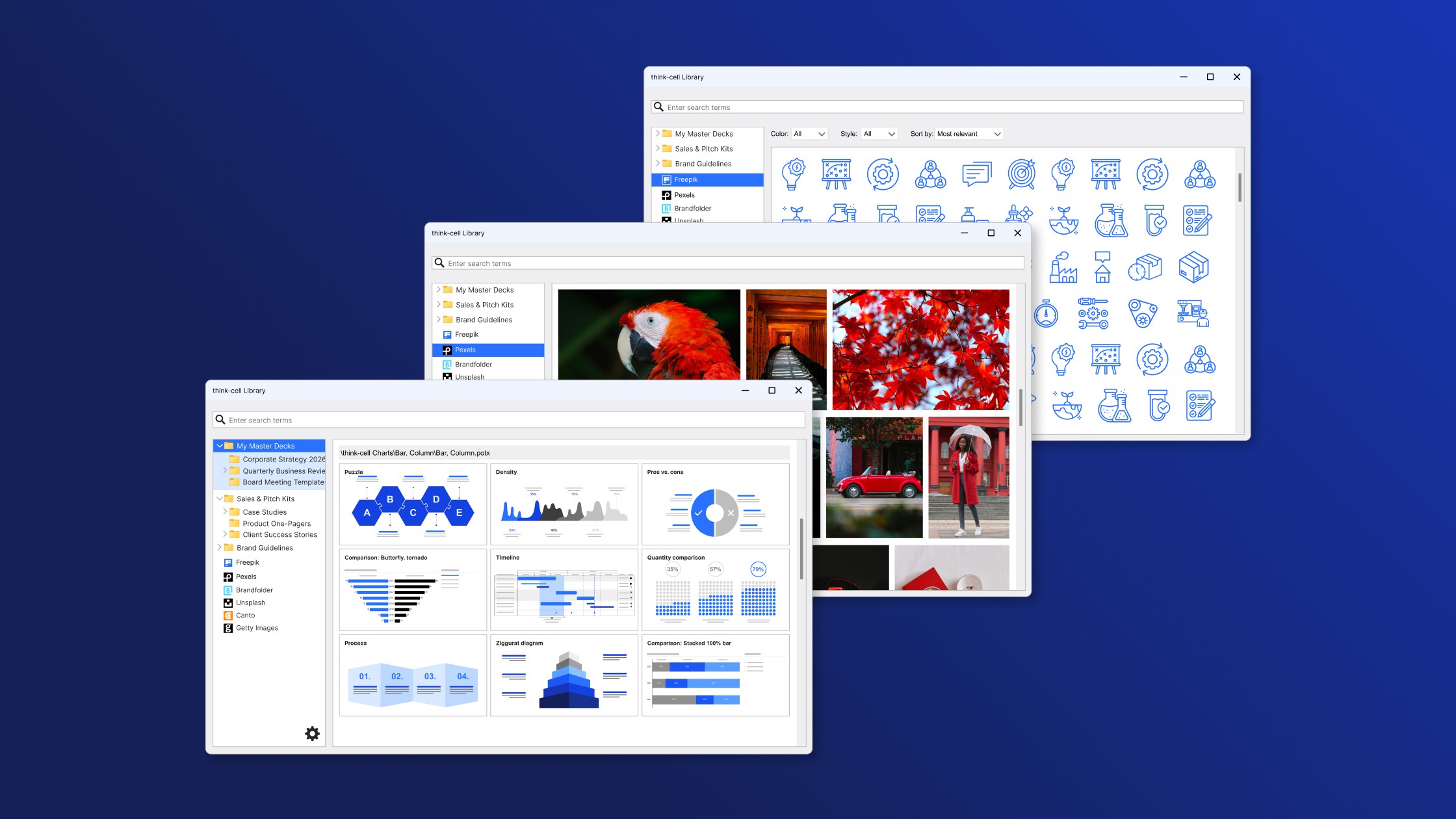
Learn how to evaluate the most important features for choosing the best possible presentation library, including templates, images, and other visual assets.

Learn 7 steps for making an effective PowerPoint presentation, including how to structure your story, lay out your slides and create clearer, more impactful charts.

Global survey of 1,200 professionals in 12 countries into how AI is used in presentation workflows.