Caselle di testo
Le caselle di testo thinkcell possono adattare automaticamente dimensioni e posizione per layout diapositiva ottimali. Scoprire come controllare il ridimensionamento automatico bloccando e sbloccando i bordi delle caselle di testo. Creare allineamenti dinamici con altri elementi thinkcell in modo che, quando si modifica il testo, gli altri elementi si spostino e si ridimensionino per mantenere l’allineamento.
Per istruzioni generali sulla formattazione e sulla disposizione delle caselle di testo e di altri elementi thinkcell, vedere Forme ed elementi.
Inserire caselle di testo thinkcell
Per inserire una casella di testo nella diapositiva, seguire questi passaggi:
- In PowerPoint, nella scheda Insert della barra multifunzione, passare al gruppo thinkcell e selezionare Text Box
 .
. - Per inserire una casella di testo con le dimensioni predefinite, fare clic nel punto in cui si desidera inserire la casella di testo. Per inserire una casella di testo con dimensioni personalizzate, trascinare per inserire la casella di testo con le dimensioni desiderate.
- Iniziare a digitare per immettere testo nella casella di testo.
Ridimensionare automaticamente le caselle di testo per adattarle al contenuto
Le caselle di testo thinkcell possono ridimensionarsi automaticamente per adattarsi al contenuto. È possibile attivare e disattivare il ridimensionamento automatico e scegliere la direzione in cui una casella di testo si espande o si riduce, sbloccando e bloccando i bordi della casella di testo.
È possibile usare il ridimensionamento automatico anche con altri elementi thinkcell che contengono testo o le cui dimensioni sono specificate in punti, tra cui Harvey ball e caselle di controllo, pentagoni e frecce, Rettangoli arrotondati, Agende e Immagini e icone.
Un bordo sbloccato può spostarsi automaticamente per adattarsi al contenuto della casella di testo. Un bordo sbloccato ha un punto di ridimensionamento blu handle 

Un bordo bloccato non si sposta, anche quando il contenuto della casella di testo cambia. Un bordo bloccato ha un punto di ridimensionamento bianco handle 

Per saperne di più, vedere Bloccare e sbloccare elementi.
Esempi di ridimensionamento automatico
Per adattare automaticamente l’altezza della casella di testo al suo contenuto in modo che il bordo superiore rimanga bloccato e quello inferiore si espanda o si riduca, bloccare il bordo superiore e sbloccare quello inferiore.

Per adattare automaticamente la larghezza della casella di testo al suo contenuto in modo che il lato sinistro si espanda o si riduca e il bordo destro rimanga bloccato, sbloccare il bordo sinistro e bloccare quello destro.

Per disattivare il ridimensionamento automatico dell’altezza della casella di testo, bloccarne i bordi superiore e inferiore.
Per disattivare il ridimensionamento automatico della larghezza della casella di testo, bloccarne i bordi sinistro e destro.
Allineare dinamicamente le caselle di testo con altri elementi
È possibile creare allineamenti dinamici tra caselle di testo e altri elementi thinkcell. Quando si modifica il testo, gli altri elementi si spostano o si ridimensionano per mantenere l’allineamento.
Ad esempio, è possibile allineare una casella di testo thinkcell e un’immagine in modo che l’immagine corrisponda sempre alla larghezza della casella di testo, anche se il testo viene allungato o accorciato.

È possibile creare un allineamento dinamico lungo i bordi superiore, inferiore, sinistro o destro di un elemento. In questo esempio, i bordi destri dell’immagine e della casella di testo sono allineati dinamicamente, come indicato da una sottile linea grigia tra i bordi. Dopo aver spostato uno degli elementi o determinati bordi, l’allineamento dinamico si interrompe (vedere Interrompere gli allineamenti dinamici).
È possibile creare allineamenti dinamici anche usando altri elementi thinkcell che contengono testo o le cui dimensioni sono specificate in punti, tra cui Harvey ball e caselle di controllo, pentagoni e frecce, Rettangoli arrotondati, Agende e Immagini e icone.
Per creare un allineamento dinamico tra una casella di testo e un altro elemento, seguire questi passaggi:
-
Prima di allineare dinamicamente i bordi desiderati, in questo esempio i bordi destri dell’immagine e della casella di testo, può essere utile bloccare alcuni degli altri bordi degli elementi in modo che non si spostino quando si modifica il testo. Un bordo bloccato ha un punto di ridimensionamento bianco handle

In questo esempio, sono bloccati i seguenti bordi:- I bordi sinistri dell’immagine e della casella di testo, per mantenerne l’allineamento.
- Il bordo inferiore dell’immagine e il bordo superiore della casella di testo, per mantenere lo spazio tra di essi.
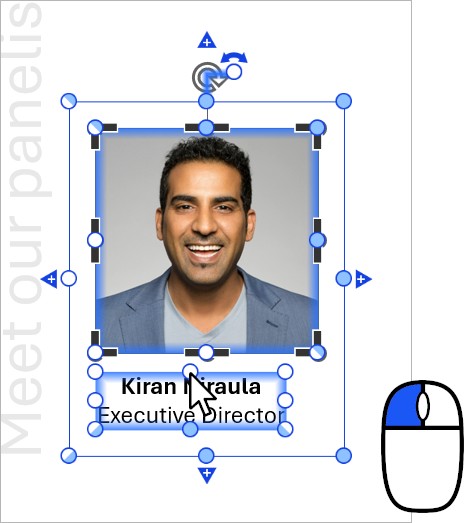

- Selezionare uno degli elementi da includere nell’allineamento dinamico, ad esempio l’immagine.
- Iniziare a trascinare il punto di ridimensionamento del bordo da allineare, in questo esempio il punto del bordo destro.
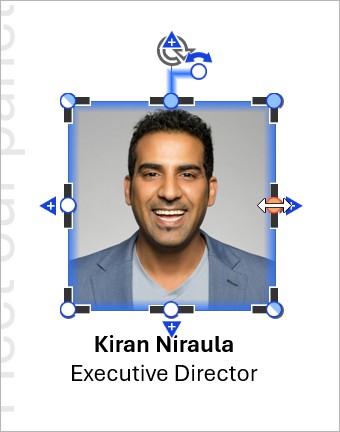

- Durante il trascinamento del punto di ridimensionamento, spostare il puntatore del mouse sul bordo dell’altro elemento a cui si desidera allinearlo. Il bordo a cui si esegue l’allineamento viene evidenziato in blu e viene visualizzata una linea sottile tra i bordi. Rilasciare il pulsante del mouse.
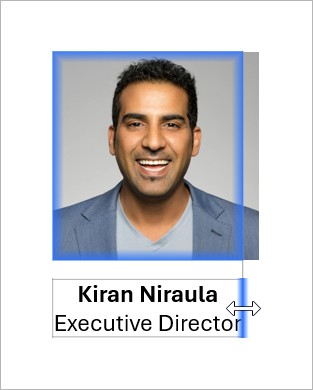

- Assicurarsi che i bordi da allineare dinamicamente siano sbloccati, ad esempio i bordi destri dell’immagine e della casella di testo. Un bordo sbloccato ha un punto di ridimensionamento blu handle



Quando si modifica il testo, l’allineamento dinamico viene mantenuto. In questo esempio, l’immagine viene ridimensionata in modo che il bordo destro dell’immagine sia sempre allineato al bordo destro della casella di testo.

Interrompere gli allineamenti dinamici
Le azioni seguenti interrompono un allineamento dinamico bloccando uno o più bordi:
- Spostare uno degli elementi allineati dinamicamente.
- Fare clic con il pulsante sinistro del mouse sul punto di ridimensionamento di un bordo allineato dinamicamente.
- Trascinare il punto di ridimensionamento di un bordo allineato dinamicamente.
- Trascinare il punto di ridimensionamento di un bordo opposto a un bordo allineato dinamicamente. Ad esempio, se il bordo destro è allineato dinamicamente, lo spostamento del bordo sinistro interromperà l'allineamento.
Hai bisogno di risolvere un problema?
Consulta la nostra knowledge base