PowerPoint project planning template
- Home
- Resources
- Content hub
- PowerPoint project planning template
5 min read — Stephen Bench-Capon
This free PowerPoint project planning template gives you a complete presentation you can use when keeping project stakeholders up-to-date and aligned. All slides are expertly designed according to best practices for business presentations.
Why you should use a project planning template for your presentations
Clarity of communication is a key aspect of project planning. When discussing a project with the team and/or other stakeholders, a professional PowerPoint presentation helps create alignment and a strong foundation for efficient collaboration.
There are many advantages to using a project planning template for your presentation:
- Speed: Working with a reliable project planning template saves you time, both in the conceptual phase of thinking what to include in your deck, and in the practical phase of sourcing or constructing individual slides.
- Completeness: Starting from a project planning template gives you a comprehensive outline that includes all the most important information for a project status review. This is a safer option than using an old presentation, which may have been adapted and not include everything you need.
- Consistency: Using a single project planning template, rather than collating slides from different sources, means that the whole presentation will have a coherent look and feel, with a consistent approach to element positions and spacing.
- Flexibility: Adapting slides from a well-designed template is more efficient than trying to make changes to a finished slide that may already include bespoke adjustments like additional annotations or custom elements.
- Recall: Sharing clear, templated presentations with your audience fosters familiarity. Professional layouts help your stakeholders quickly ingest, process and recall the information, saving time in meetings and helping you reach alignment faster.
How to use the PowerPoint project planning template
You can take this PowerPoint project planning template and use it for free, easily adapting it to your needs.
1. Adapt the presentation outline to your project
The template gives you a great foundation to start building your project planning presentation, but you still have to tailor the deck. Besides title and closing slides, the template includes the following sections:
- Agenda
- Project overview
- Project scope & deliverables
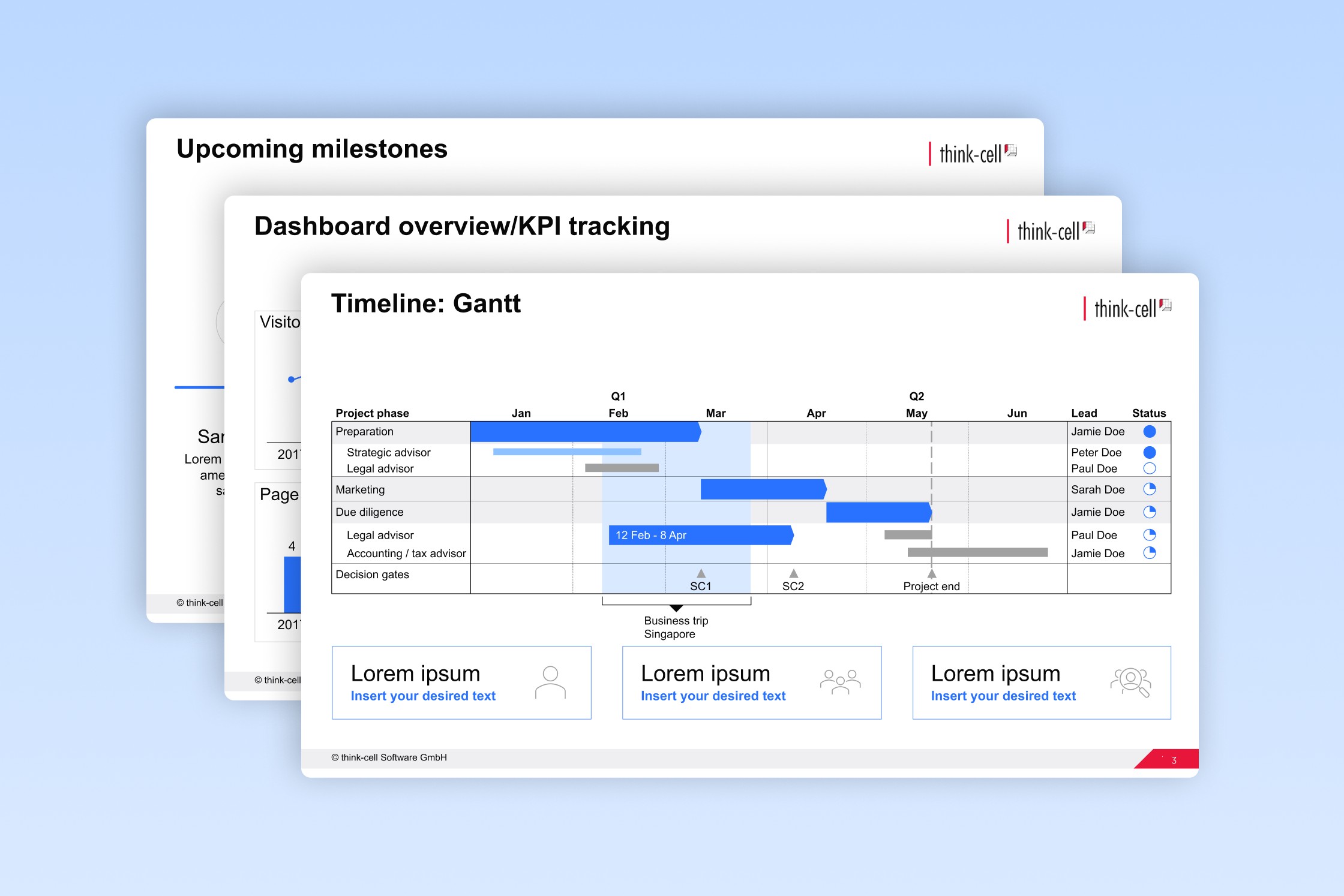
- Dashboard overview/KPI tracking
- Key activities and risks
- Project workstreams & level of completeness
- Interdependences
- SWOT analysis showing key risks and opportunities
- Timeline & milestones
- Upcoming milestones
- Timeline: Gantt
- Next steps
The first step is to review this outline and challenge whether you need each slide. If you don’t have any relevant interdependencies, you don’t need to include that slide in your presentation.
2. Adapt the individual slides to your project
Once you have settled on the outline of your project planning presentation, you should also review the individual slide templates and adapt them to your needs. For example, the slide template showing project workstreams and level of completeness has four workstreams. If you only have three workstreams, remove one. If you have five, add in an extra one.
The templates have been built to be easily adaptable to include the number of elements you want to illustrate, but there are a few ways to make adding or removing elements as smooth as possible:
- Copy existing shapes so that any new sections (e.g., workstreams) are a perfect visual fit.
- Use PowerPoint’s alignment and distribution tools so that all elements are balanced across the slide.
- Check for consistency across the presentation, so if you’re adding a workstream on one slide, make sure it is also included in the milestone overview and/or the timeline.
As a rule, you shouldn’t need to make too many adaptations. The templates provided represent the typical information scope suitable for a project planning presentation. If you find you are adding a large number of elements to several templates, it may be a warning sign that you are being too granular in your presentation.
It’s good to add additional shapes with annotations where they provide useful context, but be careful not to over-clutter your slides with unnecessary distractions. Keep your presentation on-message, consider what your audience need to know, and cut anything that isn’t relevant.
3. Write action titles for your project planning slides
The slide headings in the project planning presentation are placeholders. The premium slide space occupied by the heading should be filled with an action titles that expresses the key takeaway to your audience.
For example, the interdependencies slide in this template could have the following action title: NA roll-out delayed pending review by NY office, with decision now expected by end of Q1.
Ideally, your stakeholders would be able to glean the most important from your whole project planning presentation from the action titles, with the rest of the slide contents supporting these key messages.
4. Apply your corporate identity
You will want to adapt the project planning template to your corporate identity and/or company PowerPoint template, using your brand colors for texts and elements at different levels, such as headlines, copy, and backgrounds. One option is to adjust the slide masters directly, which should be fairly streamlined as you only need to update a small number of layouts to update the whole presentation.
Alternatively, you can copy the slides from the presentation into your existing corporate template, and choose Use Destination Theme.
When you paste in template slides, the shapes and colors will automatically adapt to your presentation’s current theme. However, you still need to verify that colors of different headings and other elements match your brand’s guidelines, as there may not be exact 1:1 correspondence, depending on how your template is set up.
5. Use think-cell to update charts with your project data
There are three slides in the project planning template that contain data-driven charts:
- Dashboard overview/KPI tracking: Line chart, column chart, doughnut chart
- Project workstreams & level of completeness: Doughnut charts
- Timeline: Gantt chart
Data-driven charts are a valuable tool for communicating on performance metrics and project status. For project planning, Gantt charts are particularly useful as they are able to provide a clear visual overview of the most important workflows, as well as responsible people, status, milestones, and task dependencies, all on one slide.
The charts in this template were created with think-cell, meaning you can update the data and adapt the charts to your project by downloading a free think-cell trial.
Discover more free PowerPoint templates with think-cell’s ultimate slide toolkit
A project planning presentation will only be successful when every slide is consistent, on-brand, and impactful, which is what all think-cell’s slide templates are designed to be. With think-cell’s ultimate slide toolkit, you get more than 70 templates you can use not just for project planning, but in a wide range of other business scenarios.
Ready to create more slides like this?
- Start your free trial for faster slide editing.
- Access 250+ professional PowerPoint templates for every business scenario.
- Save hours on formatting with smart automation and one-click layout tools.
Read more

Learn all about creating different types of PowerPoint timeline, including the best tools to use for making simple milestone charts and detailed project plans.
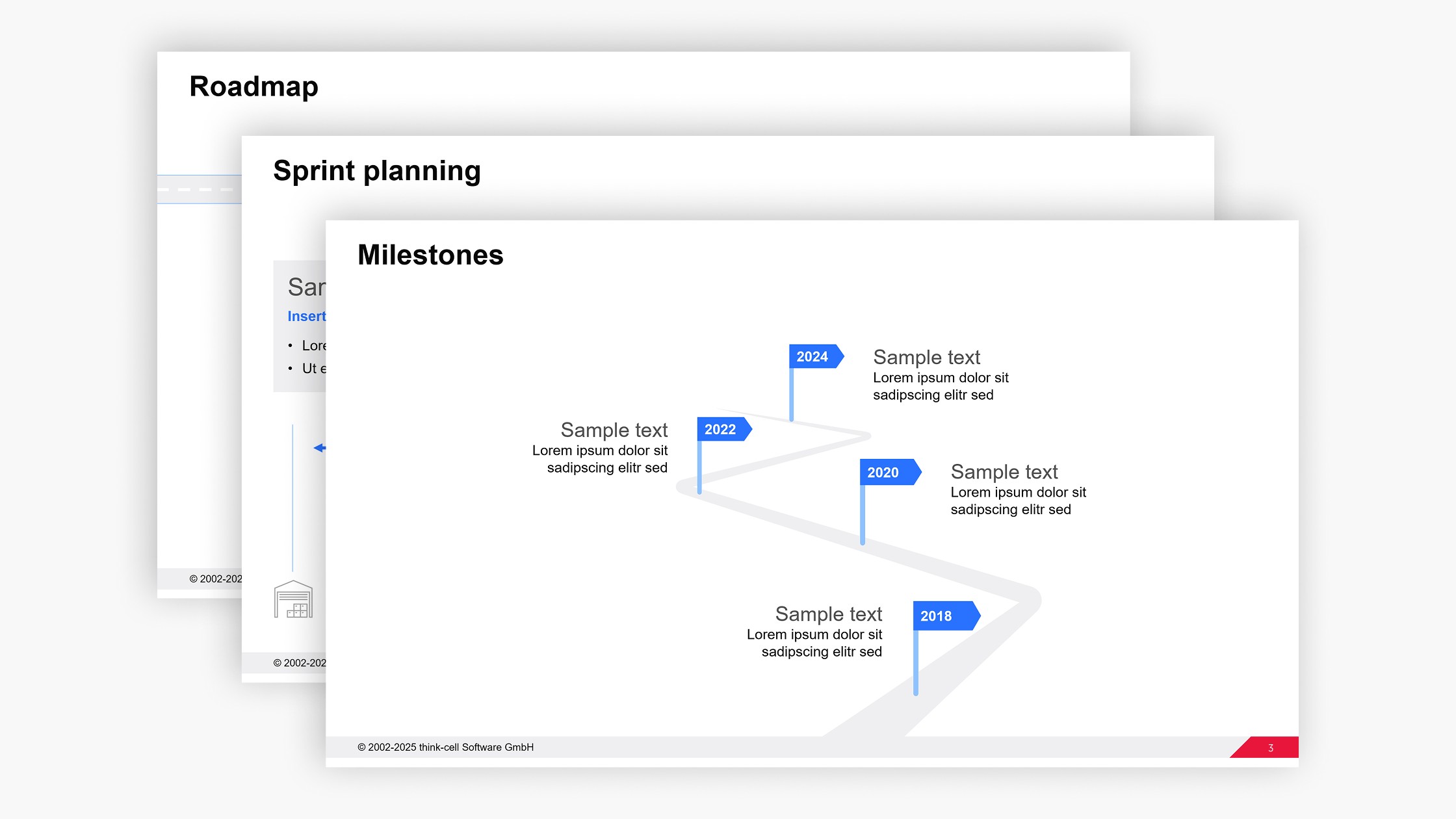
Get your free PowerPoint roadmap template you can easily edit for your business presentations.
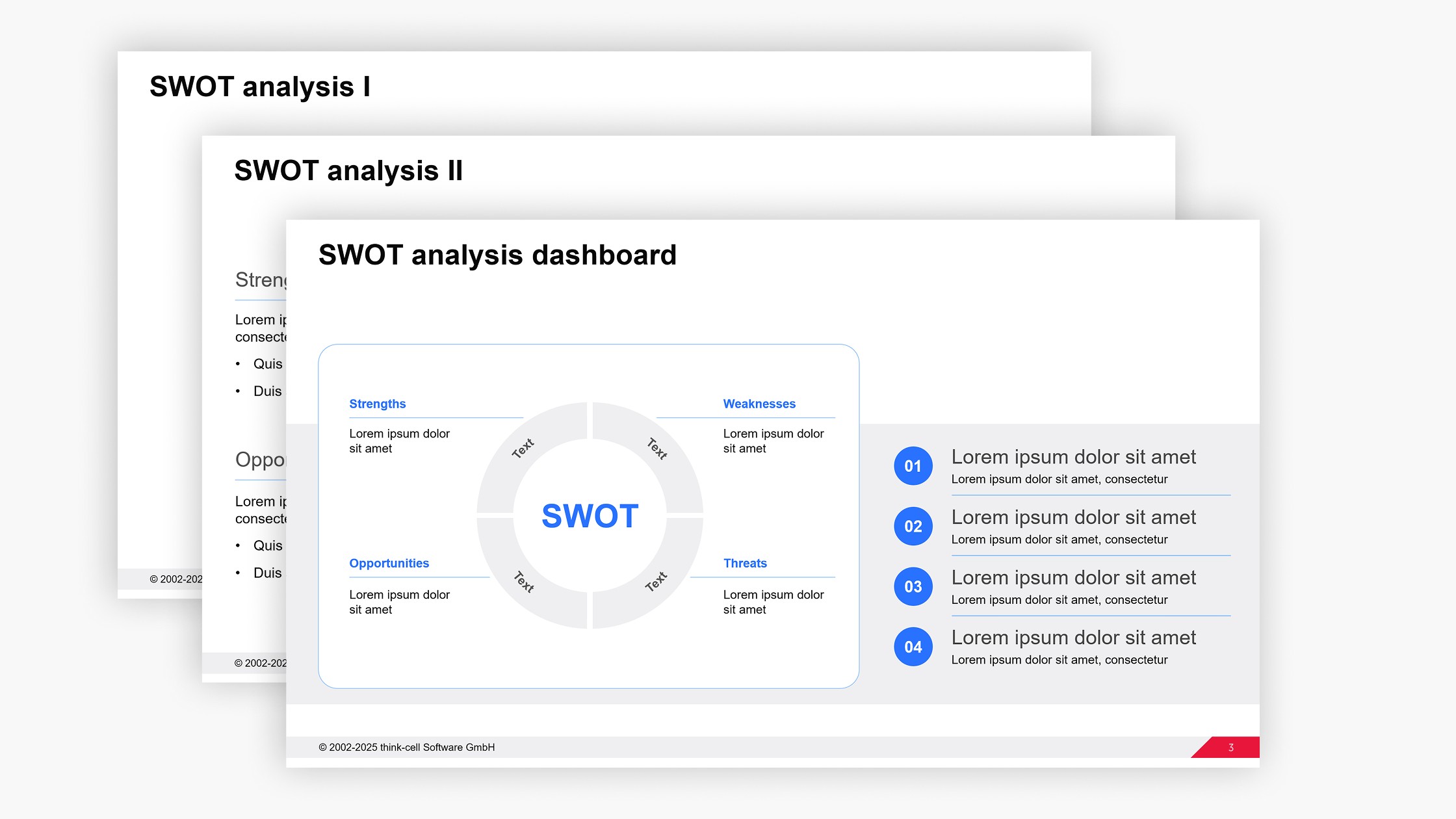
Get your free PowerPoint SWOT analysis template you can easily edit for your business presentations.
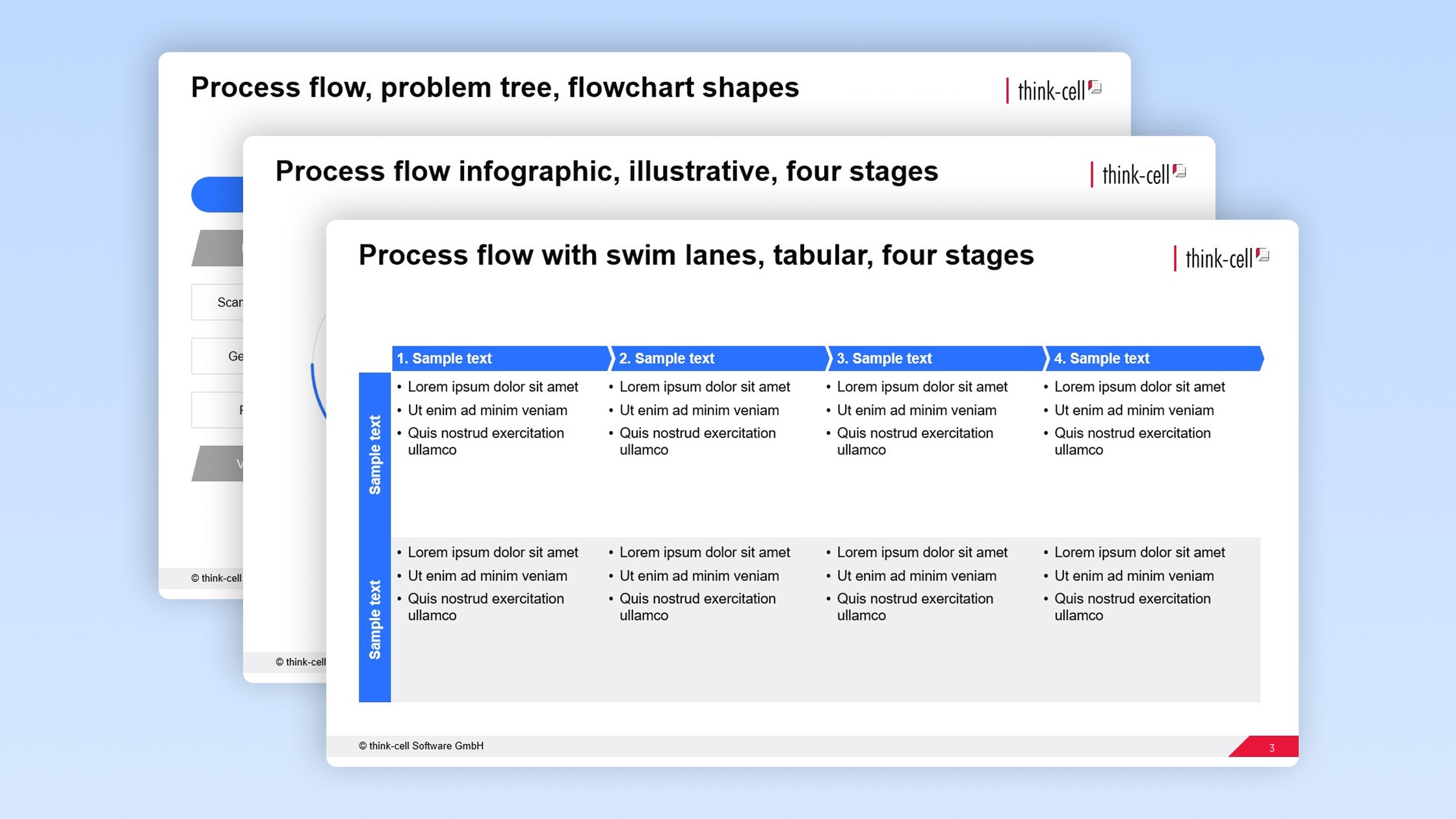
Get your free PowerPoint process flow template you can easily edit for your business presentations.