5 think-cell features that save time on formatting, layouts, and data
- Home
- Resources
- Content hub
- 5 think-cell features that save time on formatting, layouts, and data

8 min read — Marshall Bellamy
Building a PowerPoint presentation follows a familiar pattern. You add slides and other elements. You find or create slides, design them for maximum impact, and bring in data to back up your message.
Simple, but not easy. Depending on your presentation's length and complexity, this work can eat up hours.
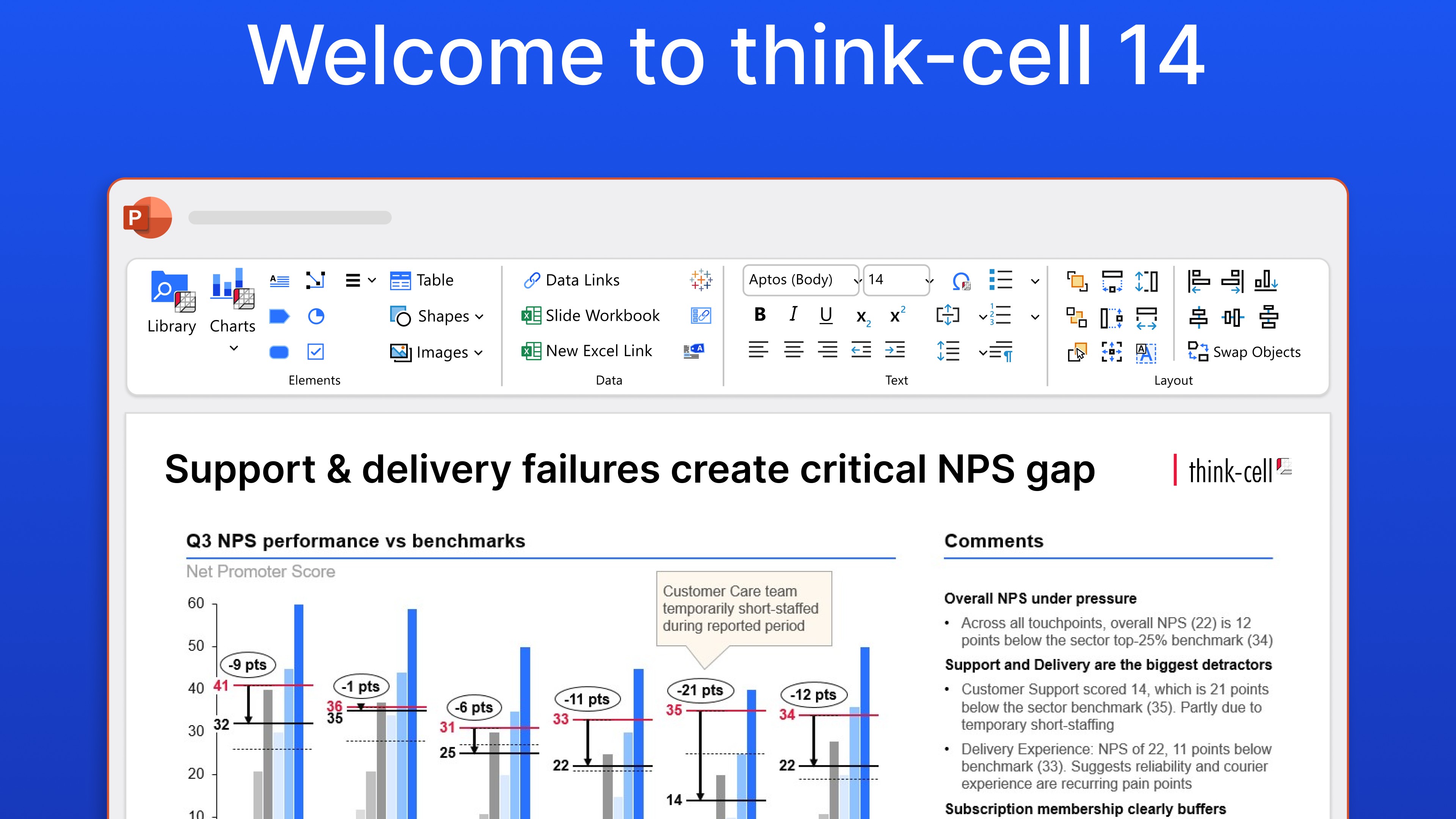
think-cell 14 introduces new features that help you find the right slide faster, design it easily, and prepare your data efficiently, so you can spend more time shaping your narrative and refining your argument. Here are five updates worth trying for your next presentation.
Contents
- Add slides and elements without reformatting
- Try out slide layouts with a click
- Bring your Excel formatting into your slides flawlessly
- Show the median when the mean doesn’t work
- Learn features while you work
These features are available in think-cell Suite. Start your free trial today and discover their time-saving potential in your own presentations.
1. Add slides and elements without reformatting
You've just found the perfect slide from a previous presentation. In your head you start a cost-benefit analysis: If you use it, then you have 20 minutes of reformatting work ahead of you, but is that quicker than building an entire slide from scratch?
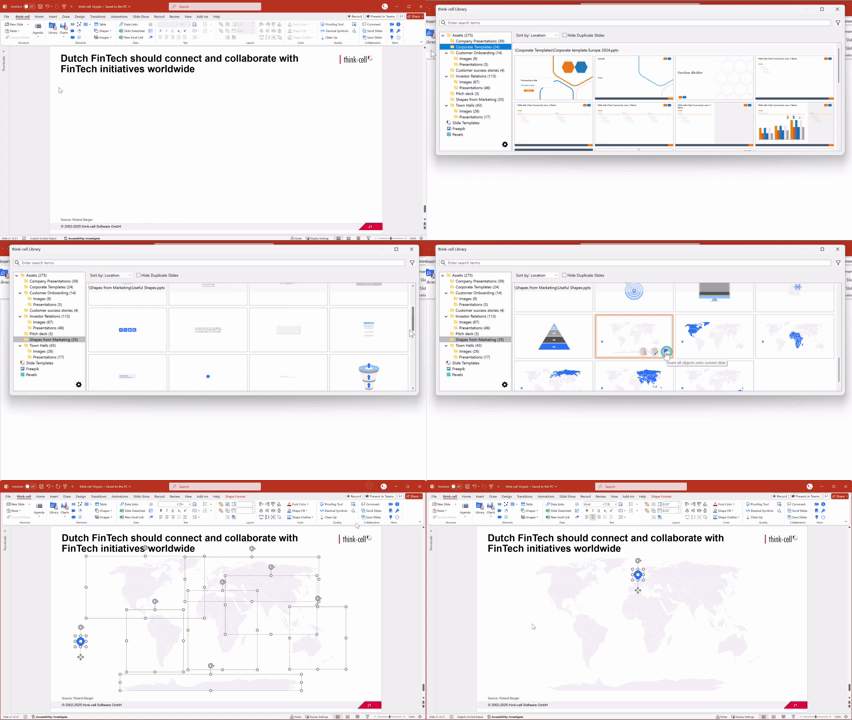
With think-cell Library, the benefits are clear: you can insert slides with destination formatting. Your borrowed content automatically adjusts its font, colors, and style to your current presentation’s theme. No manual reformatting, no off-brand slides, and no risk of glaring consistencies making it into your final deck.
Don’t need the entire slide? You can select elements from presentations in your think-cell Library, and easily add them into your current slide layout.
2. Try out slide layouts with a click
You’re building your slide and pause to lean back to take a look. And something’s not working. Does that chart look better on the left? Or the right? Should those text boxes switch positions?
In a normal workflow, you'd spend time dragging and realigning to test an alternative slide layout. If it doesn't work, you'd spend more time putting everything back.
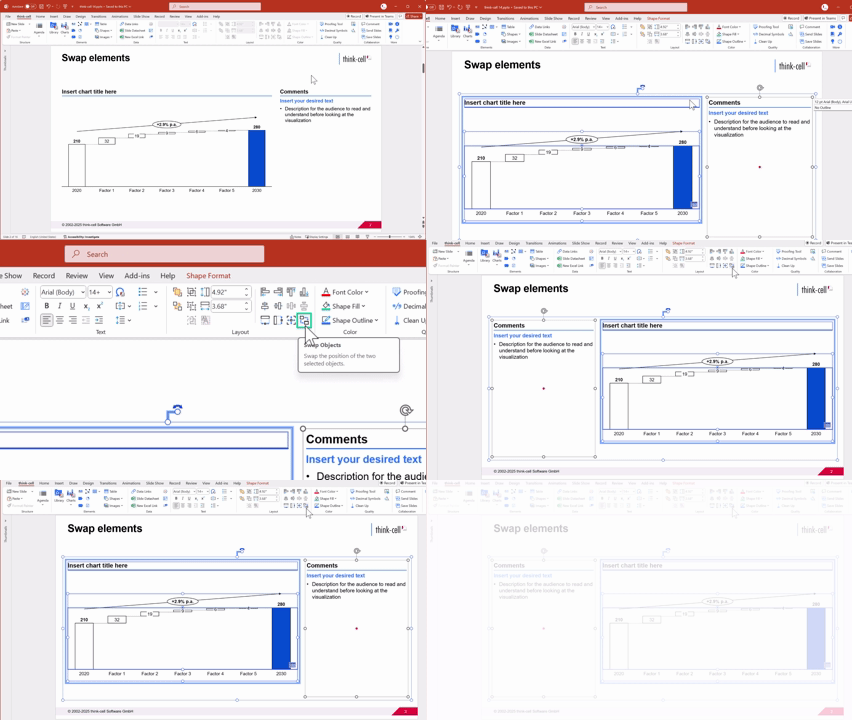
In a think-cell 14 workflow, you can switch the position of two objects with a click. Another click puts them back if it doesn’t work.
Sometimes, swapping shapes around isn't enough. You might need to resize them to give them more or less prominence on your slide.
With think-cell 14, you can scale shapes together. So, when you resize an element, the font sizes and shapes remain in proportion, eliminating the need for manual adjustments to maintain a balanced slide.
3. Bring your Excel formatting into your slides flawlessly
That data table you’ve built in Excel tells a story. You’ve spent time setting up conditional formatting with color scales and highlights for key cells.
But all that formatting disappears when you move the table into PowerPoint. Now you’re looking at a time-consuming job of reconstructing all that conditional formatting manually.
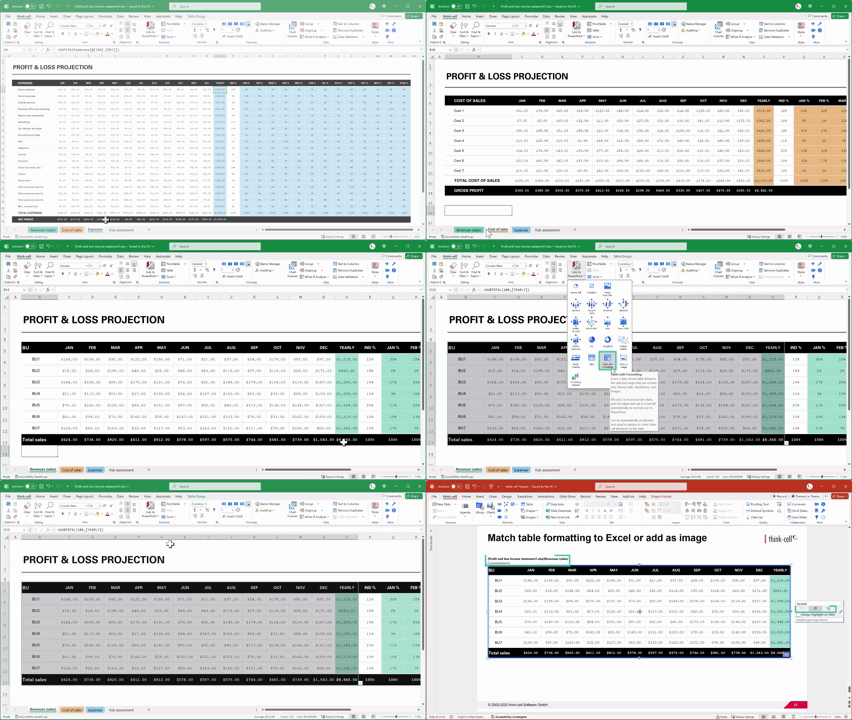
think-cell 14 can read and apply Excel's conditional formatting rules automatically, including color scales across data ranges, rules that reference other cells, and formatting based on text or date values.
Your tables keep their visual impact when they move into PowerPoint, without any rebuilding. Plus, whenever your data in Excel changes, your formatting in PowerPoint updates automatically.
4. Show the median when the mean doesn’t work
There's a bar in Seattle where the average customer has an annual income of $60,000. Bill Gates walks in for a drink, and suddenly the average jumps to $160 million. On paper, it looks like everyone in the bar just became a multimillionaire.
The mean tells you nothing useful here if one outlier distorts it. The same thing happens with Black Friday spiking your monthly sales average or a single mega deal skewing your quarterly report.
think-cell 14 includes median value lines for your charts. So, when your mean seems inaccurate, you can show the median to give your audience a number that accurately represents typical performance, all without calculating it yourself.
And the median annual income when Bill Gates walks into that Seattle bar? Still $60,000.

5. Learn features while you work
A new set of features can feel overwhelming. think-cell has dozens of productivity tools, but if you don't know they exist, you can't use them.
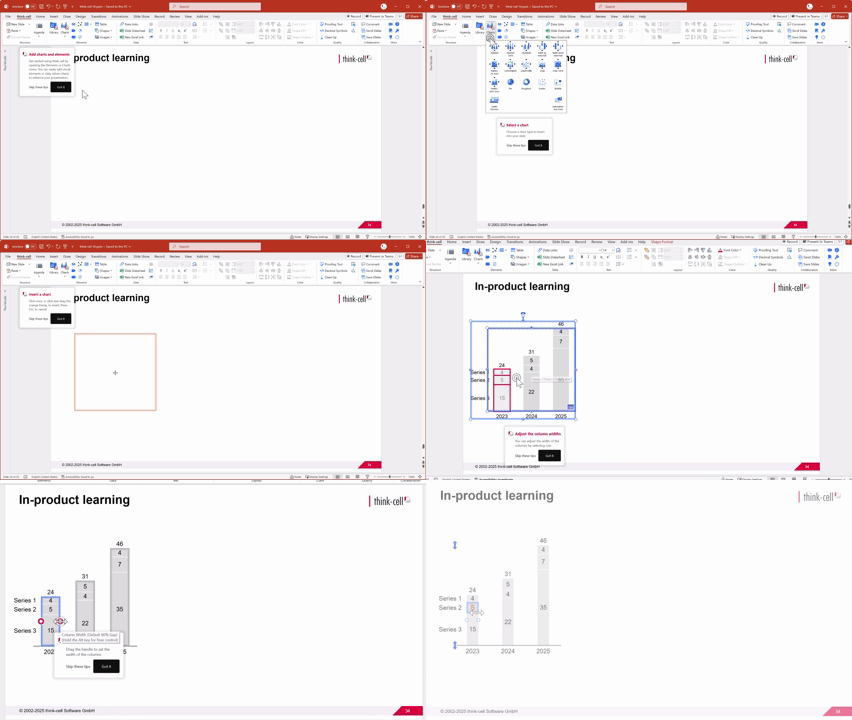
think-cell 14 includes in-product training that appears based on what you're doing in PowerPoint. You work on your slides and think-cell shows you the relevant tool for your current task.
This makes it easier for new users to get started and helps experienced users discover features they didn't know existed. No matter your think-cell skill level, you'll save time by skipping the manual and discovering productivity tools you didn't know existed.
Build faster to focus on what matters
What you need to do to build a presentation hasn't changed.
You still need to add slides, adjust layouts, bring in data, and visualize your insights. But with think-cell 14, these tasks are less time-consuming.
Spend less time reformatting borrowed slides, exploring layouts, reconstructing Excel tables, and making manual calculations. And free up more time to refine your narrative and build presentations that inspire, convince, and drive action.
Explore this topic further with AI:
Read more
Read about the launch of think-cell 14, a new version of our flagship PowerPoint productivity software, think-cell Suite, which introduces a set of powerful innovations to save users time and give them more versatility in their PowerPoint worfklows.
This article runs through 7 tools that will speed up your PowerPoint work and help you build polished slides faster, without compromising on consistency.
Global survey of 1,200 professionals in 12 countries into how AI is used in presentation workflows.