How think-cell employees create slides with AI
- Home
- Resources
- Content hub
- How think-cell employees create slides with AI
14 min read — Marshall Bellamy
Ed's note: This survey was conducted before the launch of think-cell Assist. Since then, employees have increasingly used think-cell Assist for presentation work.
AI use at work is rising. But when think-cell surveyed its own employees about how they use it for presentations, a more nuanced picture emerged.
77% already use generative AI in some form. The remaining 23% don't use it yet, but all want to. 90% expect to use more AI over the next 12 months.
So, adoption isn't the story.
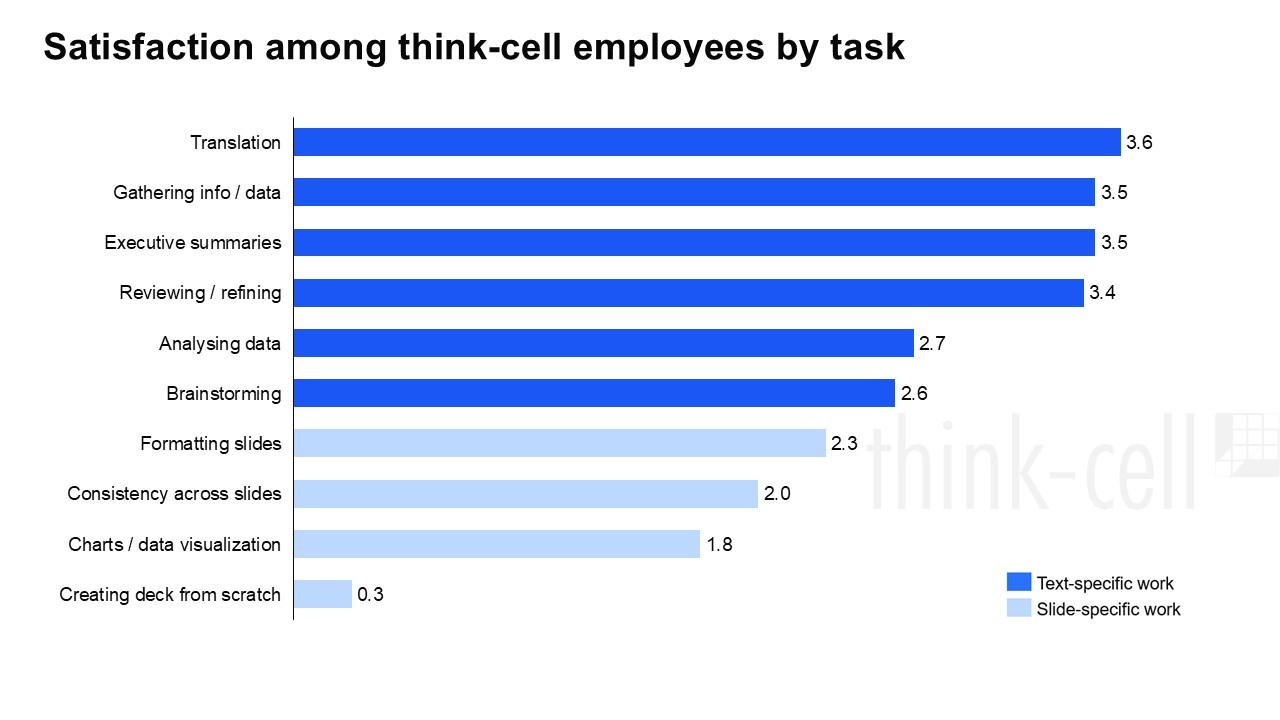
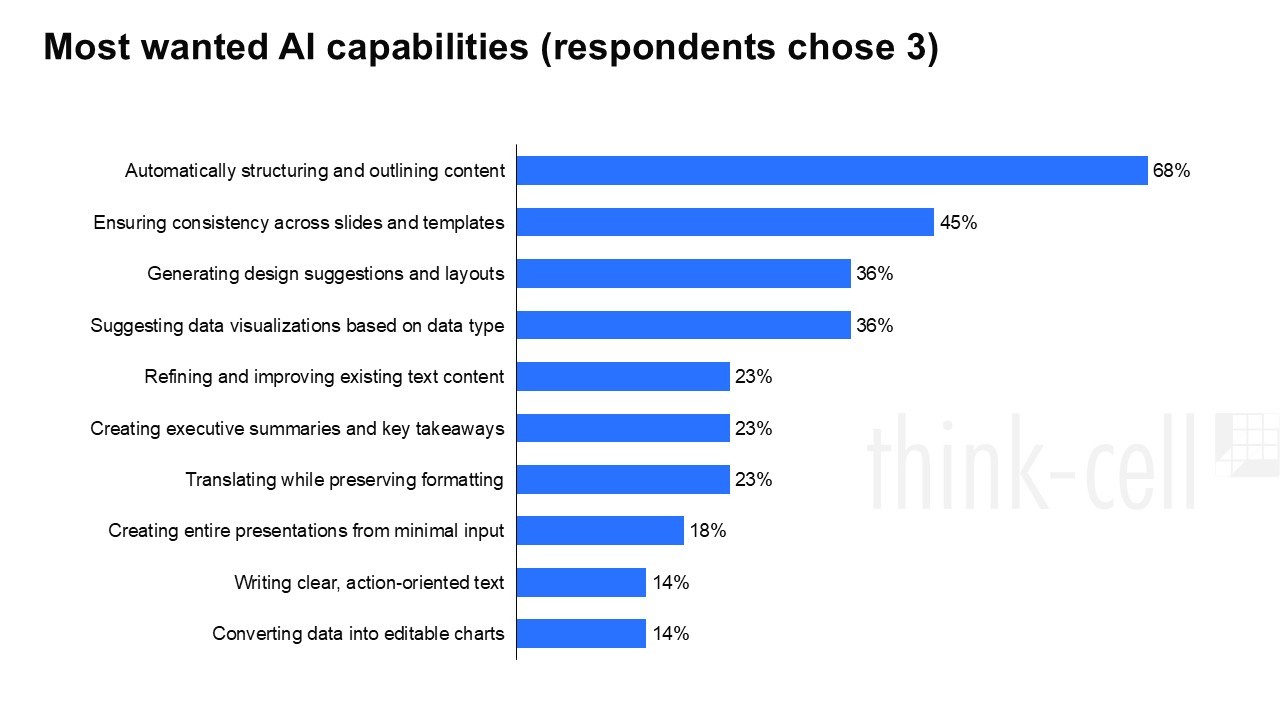
The story is where AI earns its keep and where it doesn't. Text tasks score nearly twice as high as slide-specific tasks on satisfaction. And, almost no one was satisfied with generating finished decks from a single prompt.
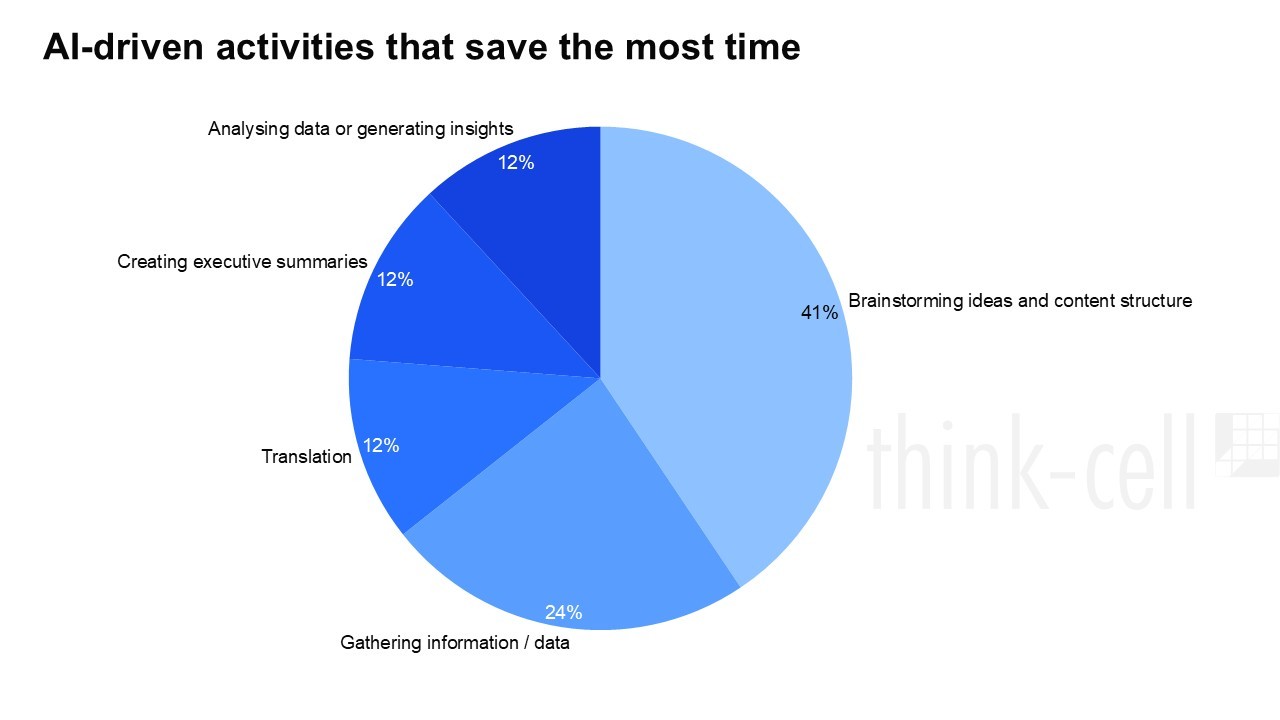
Every use case starts with something human-made: an idea, some notes, a rough draft, or a dataset. Here’s a peek at how our employees use AI across the different stages of the presentation creation process.
The state of AI in business presentation creation 2026
- Explore insights from 1,200 professionals in 12 countries.
- Understand current AI challenges and barriers to adoption.
- Inform decisions on how to integrate AI into your presentation workflows.
1. Start with the narrative, not the slides
Most think-cell employees rarely open PowerPoint until the narrative is solid. They use AI to stress-test their logic or idea first before a single slide gets built.
AI can support you like a good-natured colleague, helping build a solid narrative around your main point. It’s a good idea to set a slide limit while you’re working on the outline to keep the narrative concise and to the point.
AI can also work in a more adversarial role. You can ask it to critique your logic like it’s a skeptical stakeholder and challenge your assumptions to argue alternatives, helping you build a solid case before you start laying out slides.
I don’t even touch PowerPoint until my narrative is bulletproof. I treat the LLM as a collaborator to stress-test my logic first. It stops me from creating generic fluff and ensures every slide actually serves a purpose before I start worrying about fonts.
2. Keep AI alongside as you build
Once the presentation structure is set, the actual slide-building work begins. While think-cell employees use AI for some slide tasks, few use it for every step. Rather, it’s often about having a tab open and switching to the AI when the occasion calls for it.
I generally use AI to come up with a basic draft. Then, I take the presentation up to 80% myself, and use AI to crack some bottlenecks.
Concise text
Shorten copy or convert blocks of prose into bullet points. A slide can be an unforgiving place for long text. And it can feel like brain squeezing to get an important point down to one or two lines. AI is great for giving you a decent, shortened draft that you can polish in the slide.
Translations
Use your go-to LLM or a specialized AI-powered translation tool to localize blocks of text. Just beware that you’ll likely need to do some reformatting to fix your slide layout after pasting in the translated texts.
Chart suggestions
Drop some data into your AI’s chat and ask it what chart would be well suited to illustrate the data’s finding. Some AI tools can create a chart from the data, but these visualizations often won’t be editable in PowerPoint, so you’re usually better off taking inspiration from the AI and building the chart yourself.
Visual metaphors
Try asking your LLM for visual metaphors. If there’s a slide that’s too text-heavy, AI can suggest ways to visually represent the subject matter. The result might not be perfect on the first go, but you’ll have a new perspective that can help you freshen up your slide’s main message, or you can iterate until you get something that works.
Best practices
Ask AI to question the quality of a draft slide if you want some guidance in thinking a bit deeper about what you’re showing or if you need suggestions for improving the data’s key messaging.
Pro tip: Use AI to check for certain presentation best practices, like if every slide in the deck is following the “One-Idea” Rule or if it’s Mutually Exclusive, Collectively Exhaustive, as in no overlaps, no gaps.
Speaker notes
Paste a slide’s text into your AI chat and ask for a draft of speaker notes. It’s a fast way to turn headline and chart label copy into a fuller talking script. And it will save you a great deal of time.
Just about every technique in this section involves some context-switching between PowerPoint and your AI tool: copy-pasting content out, then reformatting output on the way back in. It's not seamless, but working with AI can remove bottlenecks if you use it for the tasks that it handles well.
3. Review your slide decks
The clean-up of a presentation is where the serious refining work happens. But it can also turn into a time sink. This phase is also where AI can make a big impact.
The 'heavy middle' of a deck, or the ‘clean-up’ is where I save the most time. I use AI for quality assurance, checking things I usually miss, like chart labels and footnotes. I also have it generate my executive summaries by feeding it the final slide content, so my takeaway is actually what I want it to be.
Summaries to check your logic
AI can generate executive summaries based on the entire slide content and a prompt asking for a single-slide summary. This will reveal what your content suggests is your presentation’s most important takeaway. If this isn’t not what you intended, that’s something for you to fix before a major misunderstanding happens when you present your slides.
Consistency checks
Export your whole presentation to PDF and ask the AI to check the consistency of units of measurement, styles and chart labels from start to finish. You could miss something, but a sharp-eyed audience member won’t.
Voice, tone and vocabulary review
You can use an AI tool to check that your tone and vocabulary are suitable for your audience. Tell it if you’re pitching to the C-suite or a team of developers and the AI can give you pointers on how technical the language should be.
No matter what, always have another human review your slides. There are plenty of great use cases for getting valuable input from AI, but it can’t replace the power of the human experience in knowing if a slide works or fails.
4. Take slides from good to great
AI can also help take your slide’s quality from good to great by helping with the final last mile edits.
AI-written action titles
Everyone, not only management consultants, can benefit from using action titles instead of descriptive headlines in their slides. AI is well suited for this task. Dropping a screenshot of the slide into an LLM and asking it to write a key takeaway in under 15 words will make your slides clearer and more effective.
For example, 'Market Data: Europe' could become 'The European market is growing 23% YoY, driven by SMBs.'
Glance tests
Check if your slides will be understood before you present them to an audience. Paste your slide content into an AI chat and ask whether an executive would understand the key point in three seconds. If not, ask it how to simplify.
I also use it for a 'glance test.' I’ll paste my slide content and ask if an executive can understand the point in 3 seconds. If they can't, the AI tells me exactly how to simplify it.
Bonus: Create your own icons
Using AI to create a custom SVG can be a solid alternative if you want a unique, tailored icon that can’t be found anywhere else. Try asking an LLM to generate the SVG code.
Describe what you want, like "a minimalist flat-design icon of a solar panel," iterate until it looks right, then copy the code into a text editor and save it as a .svg file. Drop it into PowerPoint and you can recolor and resize it without any loss of quality. Because it's a vector, it scales cleanly at any size.
Conclusion: AI still works around PowerPoint, not inside it
AI is changing how presentations are made here at think-cell. But it’s not as dramatic as the hype suggests.
The think-cell employees who get the most out of AI aren't using it to generate whole decks. They're using it to help them think more clearly before they open PowerPoint, challenge their logic mid-build, and clean up parts of the process that eat up the most time.
Copy-pasting and tab-switching remain real obstacles. And the modest satisfaction scores for formatting slides, checking consistency across a deck, and creating entire decks are a reminder that AI tools are still working around PowerPoint rather than inside it.
Start building your best slides today with AI
- Generate boardroom-ready charts from verified data sources or your own Excel.
- Never leave your workflow: create, edit, analyze and translate from one interface in PowerPoint and Excel.
- Try for free, no credit card required and no cancellation necessary.
Finally, as a reward for making it to the end, here's a summary of every technique covered in this article, organized by stage of the presentation process.
Checklist for creating slides with AI
Before you start
- Use AI to stress-test your narrative before opening PowerPoint
- Set a slide limit in your prompt to keep the outline tight
- Ask AI to argue against you as a skeptical stakeholder
While you build
- Ask AI to shorten dense text to one or two lines
- Use AI to translate text blocks (reformat manually afterward)
- Drop data into the chat and ask which chart type fits
- Ask for a visual metaphor when a slide is too text-heavy
- Ask AI to question the logic of a specific slide
- Check all slides follow the one-idea rule
- Check your arguments are MECE (no overlaps, no gaps)
- Paste a slide and ask for draft speaker notes
Reviewing the deck
- Feed the full deck to AI and ask for a single-slide executive summary, then use it as a logic check
- Export to PDF and check consistency of units, styles, labels and terminology throughout
- Check tone and vocabulary are consistent and appropriate for your target audience
- Have a human review the deck before it goes anywhere
Final pass
- Rewrite slide headers as action titles (key takeaway, under 15 words)
- Run the glance test: ask if an executive would understand each slide in three seconds
Bonus
- Generate SVG icon code, save as .svg, import into PowerPoint as a recolorable vector
Frequently asked questions
Can AI create PowerPoint slides for you?
AI tools do not work reliably or to a professional standard. Most can generate a rough structure or draft content but struggle with formatting, visual consistency, and data visualization in PowerPoint. Our survey found that three out of four people who tried creating a full deck from a single prompt were dissatisfied with the result. AI works better as a tool for specific tasks at each stage, not as a replacement for building the deck yourself.
How do people use AI to create a slide deck?
The most effective approach is to use AI at specific stages instead of handing it the whole job. Before opening PowerPoint, use it to stress-test your narrative and structure your argument. While building, use it to shorten text, suggest chart types, translate content, and draft speaker notes. During review, use it to generate an executive summary as a logic check and scan for consistency issues. At the end, use it to rewrite slide headers as action titles. The checklist at the end of this article covers every technique.
How do I prompt AI to improve my presentation?
Be specific about what you want it to do and who the audience is. Vague prompts get vague answers. Instead of "improve this slide," try "rewrite this header as a key takeaway in under 15 words for a C-suite audience" or "tell me whether an executive would understand this slide in three seconds, and if not, how to simplify it." The more context you give — audience, purpose, constraints — the more useful the output.
How long does it take to learn to use AI for presentations?
Most techniques in this article, like shortening text, drafting speaker notes, and running a glance test, require only knowing how to write a clear prompt. More advanced approaches, like stress-testing a narrative with an adversarial prompt or generating SVG icons, take more practice to get right. The bigger time investment is learning which tasks are worth using AI for and which are not. That comes from trying it on real work.
Start building your best slides today with AI
- Generate boardroom-ready charts from verified data sources or your own Excel.
- Never leave your workflow: create, edit, analyze and translate from one interface in PowerPoint and Excel.
- Try for free, no credit card required and no cancellation necessary.
Explore this topic further with AI:
Read more
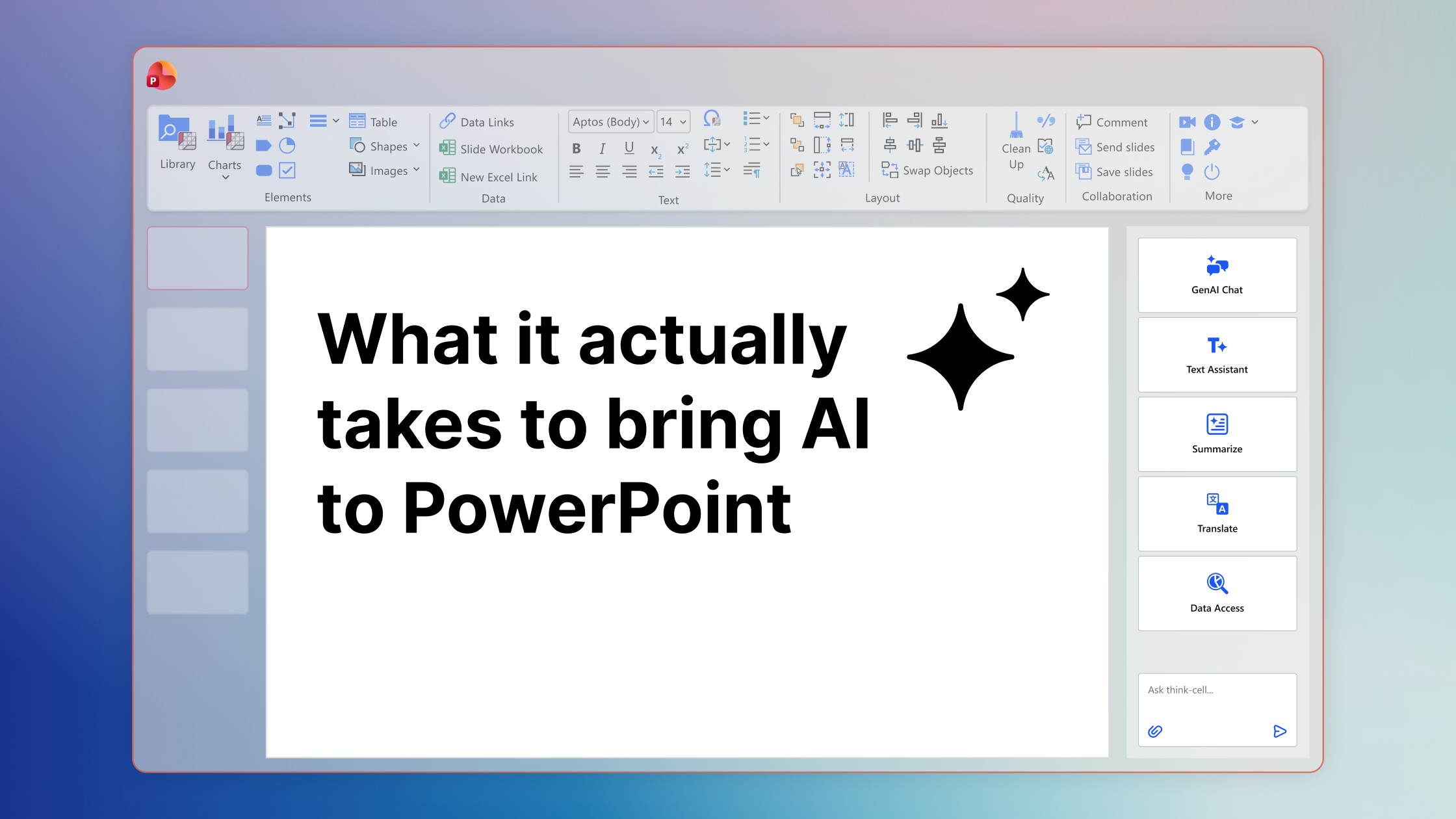
Why do AI-generated PowerPoint slides fall short for professional users? think-cell's CEO breaks down the technical hurdles and the opportunity ahead.

Let us explore Copilot, its potential impact on PowerPoint users, the importance of human interaction in the process and where we stand with Copilot.

Learn 7 steps for making an effective PowerPoint presentation, including how to structure your story, lay out your slides and create clearer, more impactful charts.
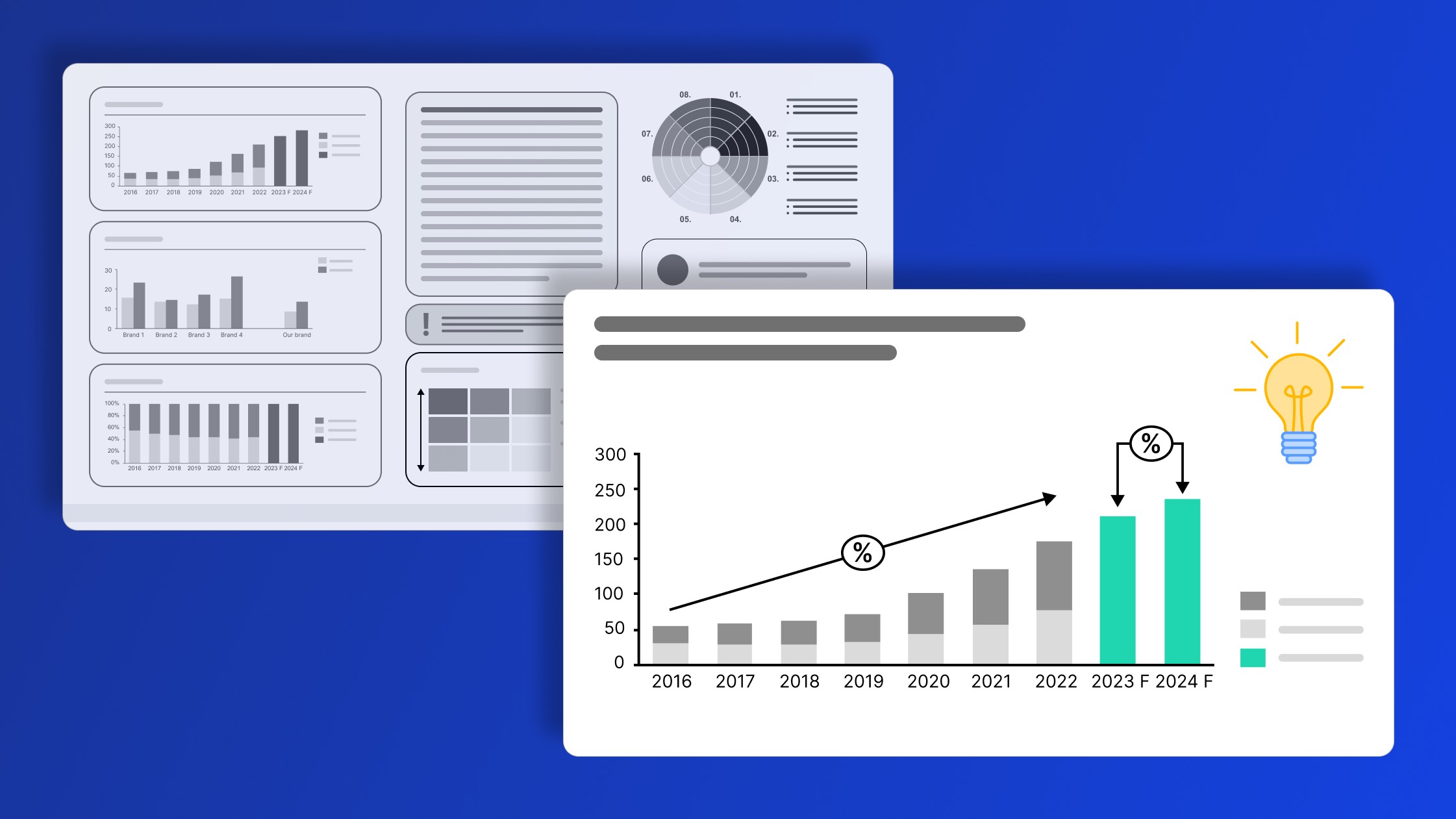
Five practical ways to turn cluttered data slides into clear, story-driven visuals that land with your audience.
Global survey of 1,200 professionals in 12 countries into how AI is used in presentation workflows.