KB0187: Security settings may prevent think-cell from being loaded
- Home
- Resources
- Knowledge base
- KB0187
Problem
In PowerPoint or Excel, if the Insert tab has no think-cell group, security settings in these applications may be preventing think-cell from loading automatically.
If the Insert tab contains the think-cell group, but the think-cell tab has no think-cell commands, see KB0243.
For other possible causes of the think-cell group missing from the Insert tab, see KB0004.
Symptoms
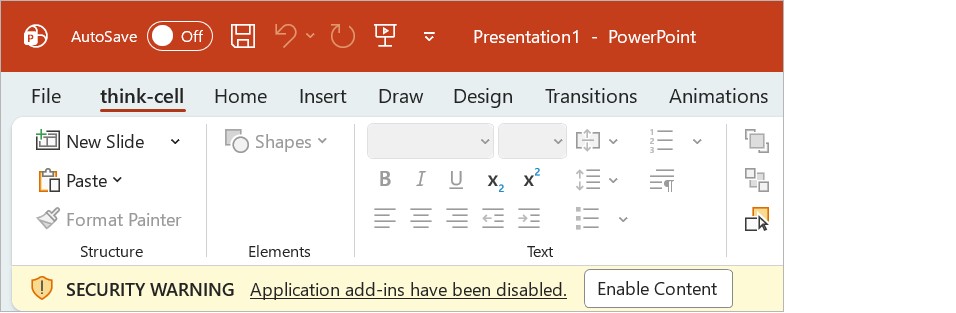
When you start PowerPoint, the Message Bar appears below the ribbon with the security warning Application add-ins have been disabled.
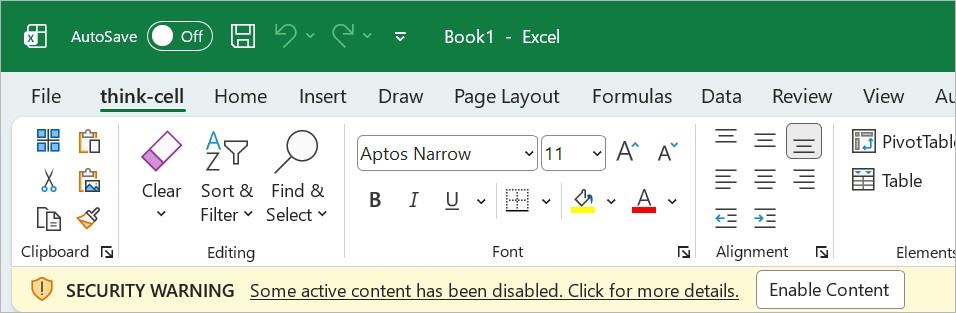
When you start Excel, the Message Bar appears below the ribbon with the security warning Some active content has been disabled. Click for more details.
If you don't see the security warning, but think-cell commands are missing from the Insert ribbon tab in PowerPoint or Excel, go to File > Options > Trust Center > Trust Center Settings > Add-ins. If Require Application Add-ins to be signed by Trusted Publisher is selected, see Detailed analysis.
Solution
To manually allow think-cell's certificate, follow these steps. A system administrator can also distribute the think-cell certificate.
- Restart PowerPoint or Excel.
-
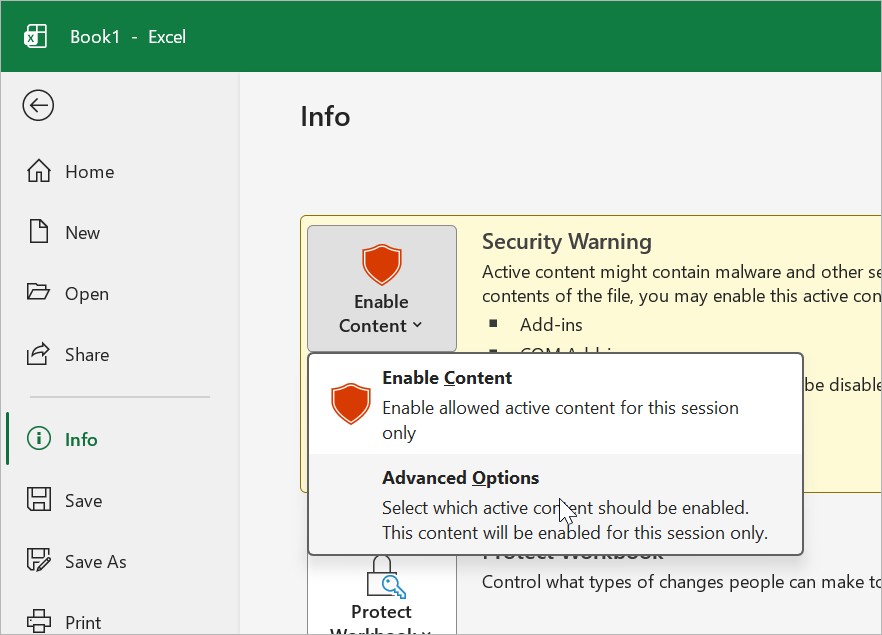
On the Message Bar, beside the security warning, do NOT select Enable Content. Instead, go to File > Info > Enable Content > Advanced Options.
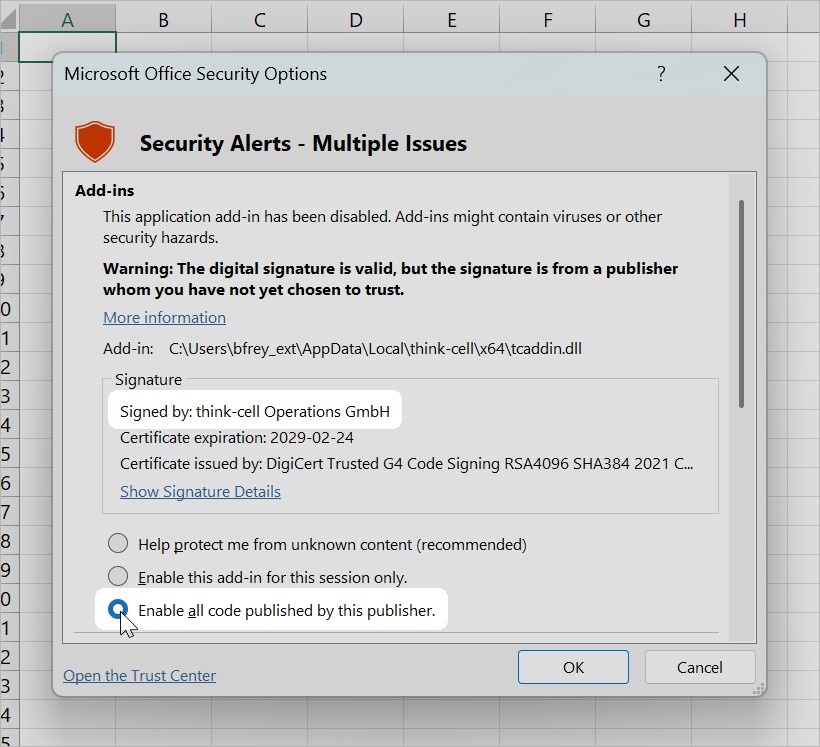
- In the Microsoft Office Security Options dialog, find the think-cell add-in. Select Enable all code published by this publisher, then select OK.
Detailed analysis
In the Trust Center, if an add-in's publisher is not on the list of trusted publishers, a security setting may prevent the add-in from loading automatically. Read more
- In PowerPoint or Excel, go to File > Options > Trust Center > Trust Center Settings.
- For testing purposes only, go to Add-ins and temporarily deselect all options. Then restart PowerPoint or Excel.
Caution: For security reasons, do not keep these settings after you finish testing.
- If think-cell works after you complete the previous steps, we recommend that in Add-ins, you select Require Application Add-ins to be signed by Trusted Publisher, then select OK. This adds think-cell to the list of trusted publishers.
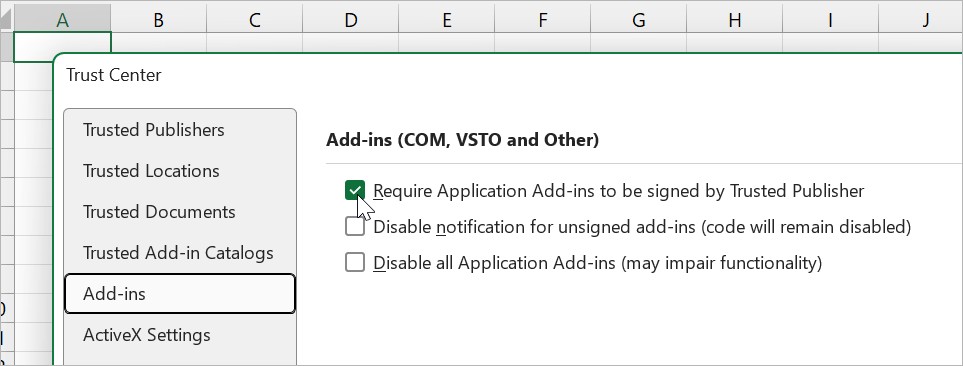
- To find the list of trusted publishers, in the Trust Center dialog, go to Trusted Publishers. If think-cell is not yet on the list, follow these steps: Read more
- In the Trust Center dialog, go to Add-ins. Make sure that the option Require Application Add-ins to be signed by Trusted Publisher is selected.
- Go to Message Bar and make sure that the option Show the Message Bar in all applications when active content, such as ActiveX controls and macros, has been blocked is selected.
- Follow the steps described in Solution.