KB0187:安全设置可能会阻止 thinkcell 加载
问题
在 PowerPoint 或 Excel 中,如果 Insert 选项卡没有 thinkcell 组,这些应用程序中的安全设置可能阻止了 thinkcell 自动加载。
如果 Insert 选项卡包含 thinkcell 组,但 thinkcell 选项卡没有 thinkcell 命令,请参阅 KB0243。
有关 thinkcell 组未出现在 Insert 选项卡中的其他可能原因,请参阅 KB0004。
症状
启动 PowerPoint 时,功能区下方会显示消息栏,并出现安全警告 Application add-ins have been disabled.

启动 Excel 时,功能区下方会显示消息栏,并出现安全警告 Some active content has been disabled. Click for more details.

如果您没有看到安全警告,但 PowerPoint 或 Excel 的 Insert 功能区选项卡中缺少 thinkcell 命令,请转到 File > Options > Trust Center > Trust Center Settings > Add-ins。如果已选择 Require Application Add-ins to be signed by Trusted Publisher,请参阅详细分析。
解决方案
要手动允许 thinkcell 的证书,请按以下步骤操作。系统管理员也可以分发 thinkcell 证书。
- 重新启动 PowerPoint 或 Excel。
-
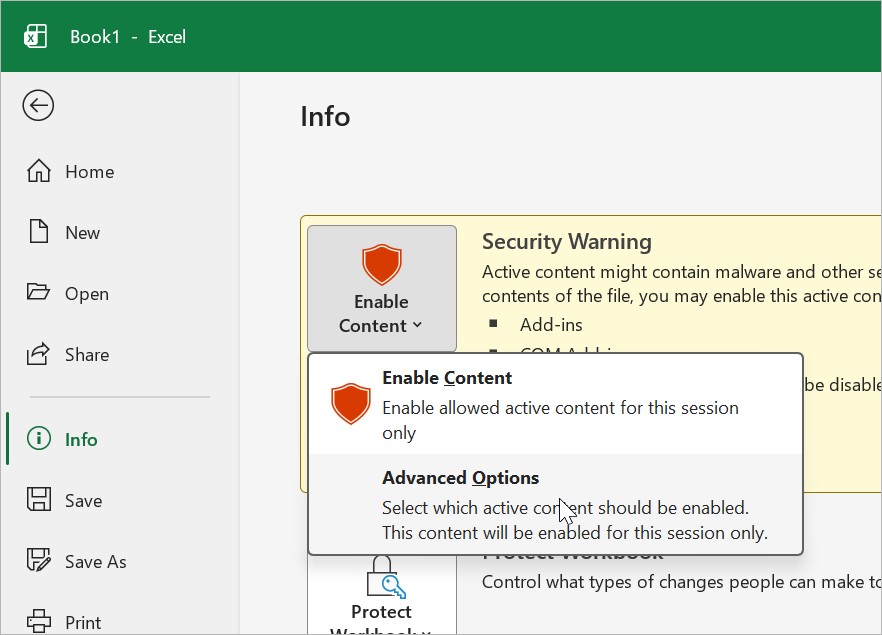
在消息栏中,在安全警告旁边,不要选择 Enable Content。而是转到 File > Info > Enable Content > Advanced Options。
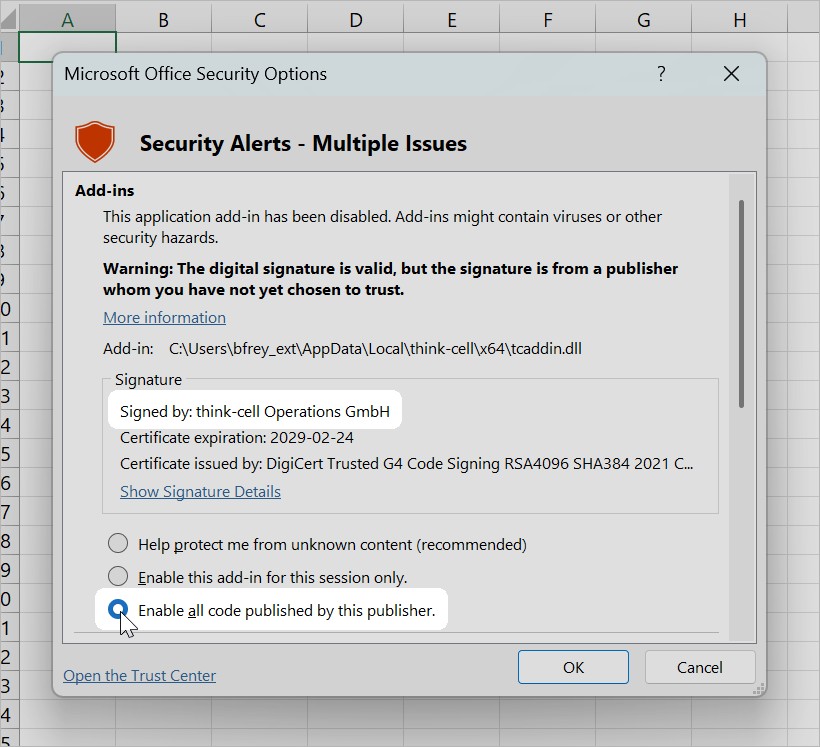
- 在 Microsoft Office Security Options 对话框中,找到 thinkcell 加载项。选择 Enable all code published by this publisher,然后选择 OK。


详细分析
在信任中心中,如果加载项的发布者不在受信任发布者列表中,某项安全设置可能会阻止该加载项自动加载。 阅读更多
- 在 PowerPoint 或 Excel 中,转到 File > Options > Trust Center > Trust Center Settings。
- 仅用于测试目的,请转到 Add-ins 并临时取消选择所有选项。然后重新启动 PowerPoint 或 Excel。
注意:出于安全原因,测试完成后请勿保留这些设置。
- 如果完成上述步骤后 thinkcell 可以正常工作,建议您在 Add-ins 中选择 Require Application Add-ins to be signed by Trusted Publisher,然后选择 OK。这会将 thinkcell 添加到受信任发布者列表中。
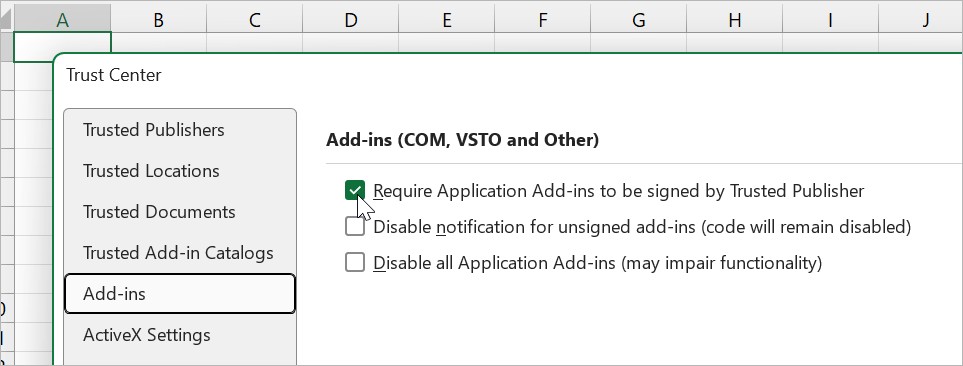

- 要查找受信任发布者列表,请在 Trust Center 对话框中转到 Trusted Publishers。如果 thinkcell 尚未出现在列表中,请按以下步骤操作: 阅读更多
- 在 Trust Center 对话框中,转到 Add-ins。确保已选择 Require Application Add-ins to be signed by Trusted Publisher 选项。
- 转到 Message Bar ,确保已选择 Show the Message Bar in all applications when active content, such as ActiveX controls and macros, has been blocked 选项。
- 按照 解决方案 中描述的步骤操作。