KB0190: Error during thinkcell (un-)installation
- Home
- Resources
- Knowledge base
- KB0190
Problem
When installing thinkcell, the installer automatically tries to uninstall any thinkcell versions you previously installed. If uninstalling the previous installations does not work, updating thinkcell fails.
-
If you see one of the following messages when installing or uninstalling thinkcell, refer to Solution 1:
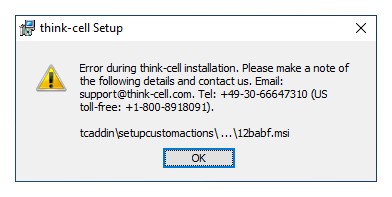
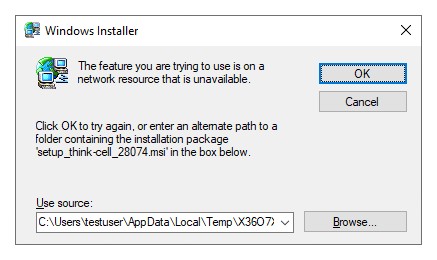
-
If you see one of the following messages when installing or uninstalling thinkcell, refer to Solution 2:
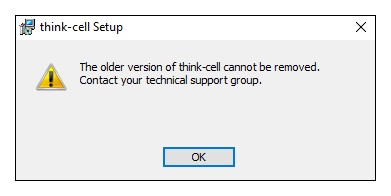
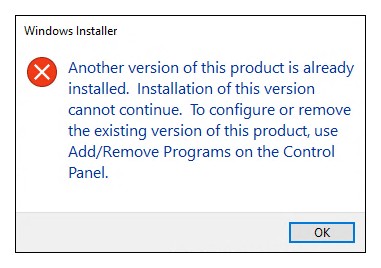


If the installer program does not start please refer to KB0003.
Solution 1
In this case, Windows lost necessary information about the previous installer. The current thinkcell version provides the missing information to remove the previous installation and installs the new version afterwards:
- Please download the current thinkcell version from our download web page.
-
Start the installation and the following message will appear:
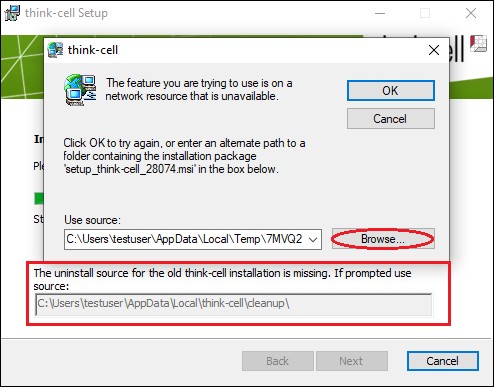
- thinkcell provides the missing information in
%LOCALAPPDATA%\think-cell\cleanup. Click on Browse... and copy and paste the following path:%LOCALAPPDATA%\think-cell\cleanup
into the address bar and press[ENTER]. - Choose
setup_think-cell_xxxxx.msi> Open > OK - The previous thinkcell version will be removed and the latest version installed > Finish

Solution 2
In this case, problems in the Windows Registry prevent the uninstallation. Such general uninstall problems can usually be resolved by following Microsoft's instructions, Fix problems that block programs from being installed or removed.
Contact support
If Microsoft's instructions in section Solution 2 did not help, contact our support team and attach to your message the description of the steps that lead to the error and a screenshot of the error message window.