KB0091: How can I find out which add-in causes a problem?
- Home
- Resources
- Knowledge base
- KB0091
Problem
If you encounter a problem, it is often hard to tell where the root of the problem is: in thinkcell, some other add-in, or PowerPoint/Excel itself. It is possible that there is quite a number of Office add-ins installed that you are not even aware of.
Solution
1. Start thinkcell's diagnosis tool TCDiag (tcdiag.exe)
thinkcell includes a tool named TCDiag that can help you find out which add-in is causing the problem. TCDiag is delivered with thinkcell and you can find it in the thinkcell installation folder. Read more
- The installation folder is shown when you click on Tools

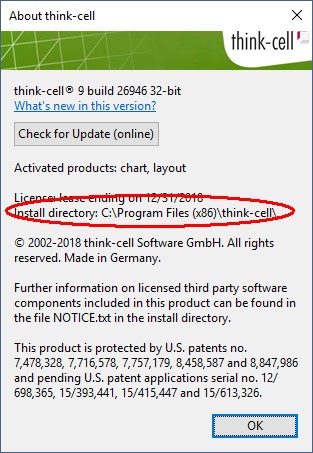
- If thinkcell is not running, please look for the installation folder in the default location: Read more
Simply copy the path below including the percentage signs into the Windows Explorer Address Bar or the Start menu search box.
- If thinkcell is installed from an administrator account:
32-bit editions of Windows:%PROGRAMFILES%\think-cell
64-bit editions of Windows:%PROGRAMFILES(x86)%\think-cell - If thinkcell is installed from an user account:
%LOCALAPPDATA%\think-cell

- If thinkcell is installed from an administrator account:


For 64-bit versions of Microsoft Office 2010 and later, use the version located in the subfolder \x64. Start the tool by double-clicking the tcdiag.exe.
Within TCDiag, you find a PowerPoint tab and an Excel tab, each listing the installed add-ins of the respective application. Unticking an add-in here temporarily disables it for the next start of PowerPoint or Excel. You may have to resize the table columns to be able to read the add-ins' names and paths.
Note: Some add-ins may appear inaccessible (greyed-out) in the add-in list of TCDiag. This indicates that the add-in was installed by an administrator, but TCDiag is currently running without administrative privileges. If you have the necessary privileges you can right-click tcdiag.exe and choose Run as administrator. If this does not work please approach your company's IT support.
2. Check if the issue occurs without add-ins
- Close all PowerPoint and Excel windows and make sure that there are no hidden PowerPoint and Excel processes running anymore: Read more
Open the Windows Task Manager:
- Windows Vista and Windows 7: Task Manager > Processes.
- Windows 8, Windows 8.1 and Windows 10: Task Manager > More Details > Details.
and close any
POWERPNT.EXEandEXCEL.EXEprocesses. - In
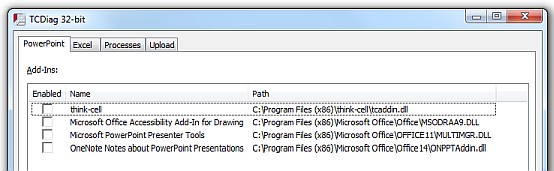
tcdiag.exe, clear all checkboxes in the Enabled columns on both the PowerPoint and the Excel tab to temporarily deactivate all add-ins.
- Start PowerPoint or Excel, and check if the error that you observed is still present.
- If it does, then it is an internal problem of the Microsoft application and most probably unrelated to any add-ins. You should make sure that you have the latest patches for your version of Microsoft Office installed, and if you have, you should look for a solution in Microsoft's knowledge base or contact the Microsoft Office Support.

3. Check if the issue occurs with thinkcell alone
- Again, close all PowerPoint and Excel windows and make sure that there are no hidden PowerPoint and Excel processes running anymore in the Windows Task Manager.
- In
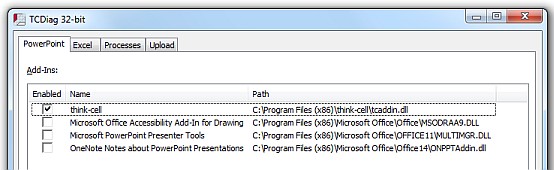
tcdiag.exein the Enabled columns on both the PowerPoint and the Excel tab, tick thinkcell and untick all other add-ins.
- Start PowerPoint or Excel, and check if the error that you observed is still present.
- If it does, then this seems to be a problem triggered by thinkcell. Please contact us as described below.

4. Check if the issue occurs with some other add-in or with a combination of add-ins
Check the presence of the error for different combinations of add-ins. For each combination:
- Close all PowerPoint and Excel windows and make sure that there are no hidden PowerPoint and Excel processes running anymore in the Windows Task Manager.
- In
tcdiag.exein the Enabled columns, choose a certain combination of add-ins. For example you can try all other add-ins apart from thinkcell, and combinations of thinkcell and one or two other add-ins. Read more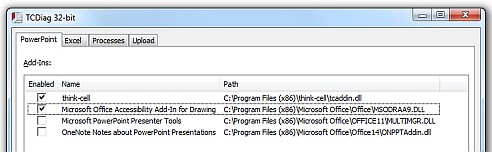
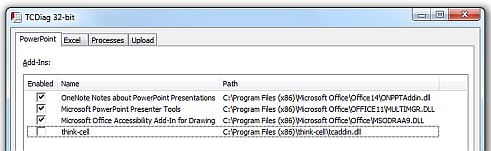
- Start PowerPoint or Excel, and check if the error that you observed is still present.
- Repeat step 1. - 4. until you have established a minimal combination of add-ins that triggers the error.
- If the error occurs when thinkcell and another add-in is active, please contact us and the other vendor as explained below. If the error occurs when thinkcell is not active, thinkcell is most likely not involved in the error. In this case please contact the vendors of the add-ins that need to be active to make the error occur.


Contact support
If the problem no longer occurs when thinkcell has been disabled, please contact our support team. If the problem only occurs if thinkcell and some other add-in are enabled together, you may either:
- provide us with an installable version of the other add-in, or
- contact the other vendor, who can then either give us a test version of his product or do the troubleshooting himself. In case the other vendor wants to do the trouble-shooting, he may contact us to obtain a test license of thinkcell.
It is possible that on close examination we determine that the problem lies with the other add-in. In this case, our experience shows that the vendor often will not act if we contact him directly. Instead, you as the customer must open a support case with the vendor. Please pass on our full contact data and let them know that we are happy to provide a more detailed explanation.