Stay in control when managing Excel links with think-cell
- Home
- Resources
- Content hub
- Stay in control when managing Excel links with think-cell
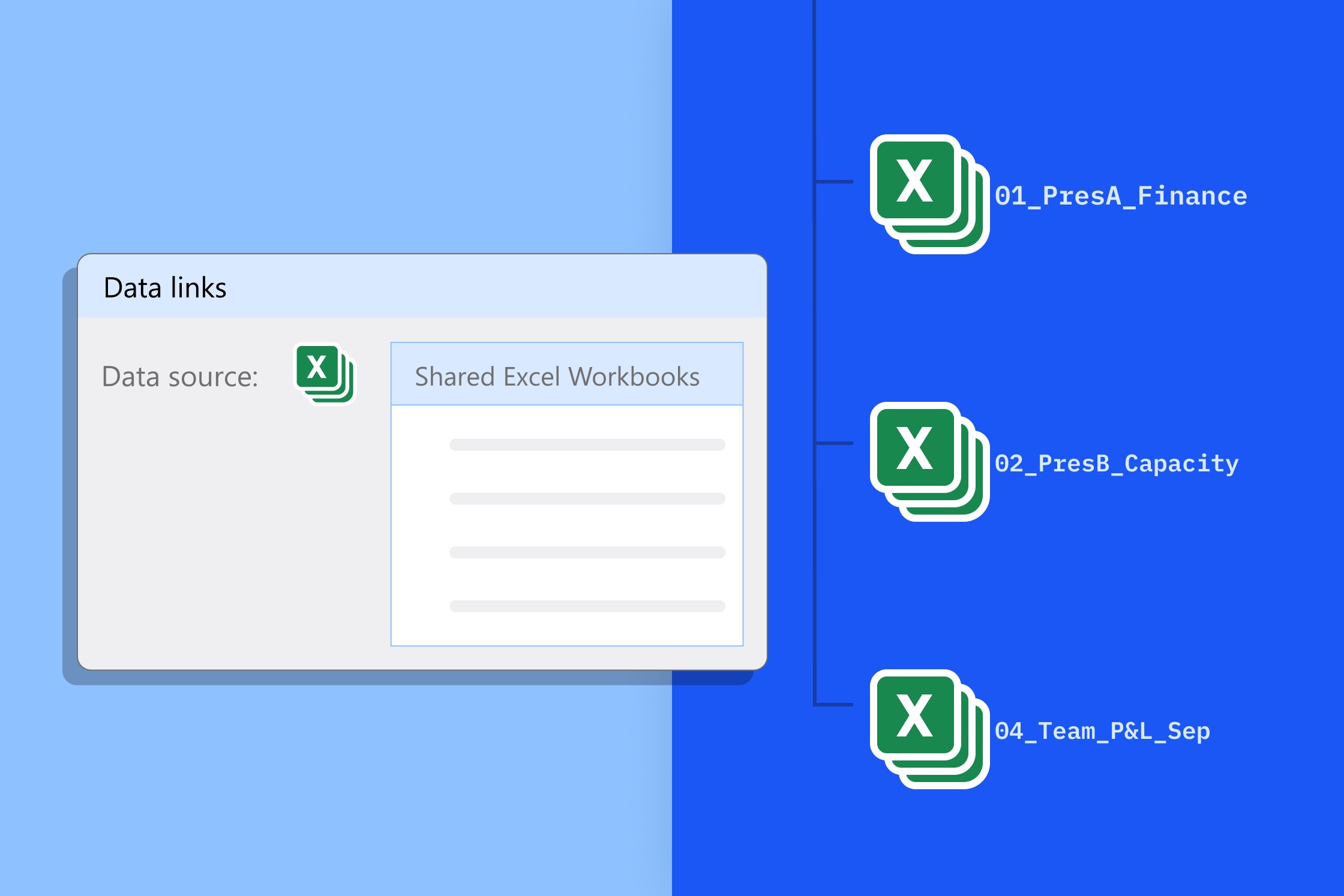
7 min read — Umurcan Yilmaz
Excel links have long been a key part of how think-cell users create data-driven charts in PowerPoint. With think-cell 14, we’ve overhauled how you can manage Excel links, adding increased transparency and flexibility to better serve a wider range of use cases.
This short article will help you understand the improved behavior so you can get the most out of think-cell’s new capabilities and stay in control of how your Excel data is linked.
Build professional charts in seconds
- Download your free trial for faster creation of 40+ chart types.
- Automate chart creation with AI tools purpose-built for your slide workflow.
- Work seamlessly with Excel data links for automated reporting.
Mentality: Switch from passive link management to active link management
In the past, think-cell used to manage your Excel links autonomously. If files were moved or renamed, think-cell would reestablish the link when it identified the range in a new workbook. Changing links automatically saved time in some cases, but it could cause confusion when it happened outside of the user’s control.
think-cell’s new, improved approach is a shift in mindset. We’ve moved from passive link management, where you could set and forget, to active link management, where you stay in control at all times. Now, think-cell won’t set or change any Excel links without your explicit instruction to do so.
Accessibility: See, find and review linked data in two clicks
As you’re now actively managing Excel links, we’ve made it easier to access them. Any linked charts and other elements display the full file path when selected, including the folder, workbook name, and the specific worksheet where the data is, directly on the slide. This helps you understand which data is linked, without having to open any menus or other files.
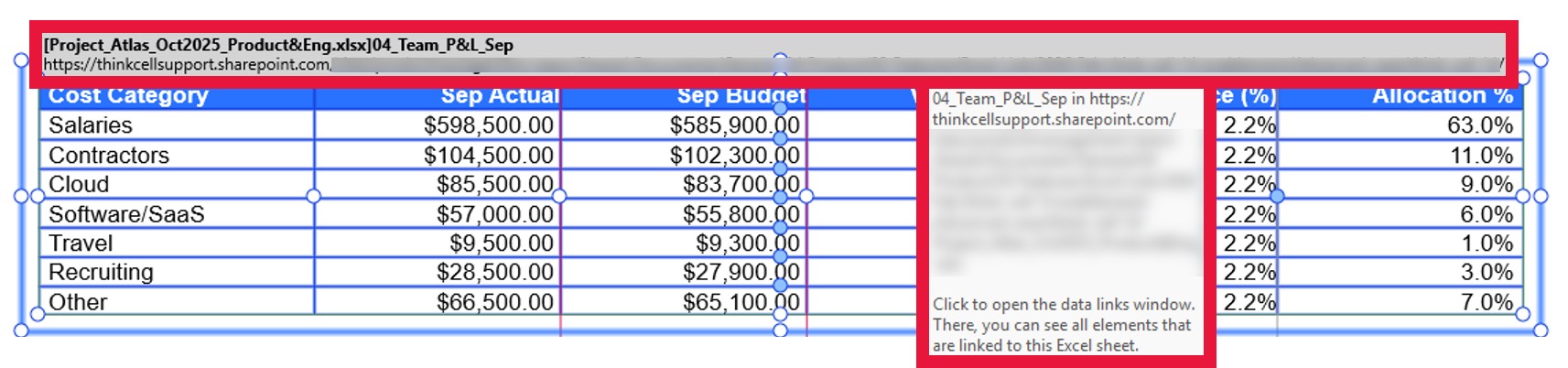
If your slide is meant to show October results and you see a file path that says September, that’s an immediate sign your link is out of date. And if you want to check the data, you have a friction-free workflow. Simply click the file path to open the data links window and see all the linked elements for that slide. One more click and you’re in the Excel worksheet.
Clarity: Understand exactly where your data is coming from
Staying on top of all your data sources can be a challenge, particularly when you’re working on multiple PowerPoint presentations and/or multiple Excel workbooks at the same time.
To give you a clear overview, the data links window now shows linked data ranges in a hierarchical structure. For each linked Excel workbook, all sheets with linked data ranges are listed individually. This helps you understand precisely where the data in your presentation is coming from.
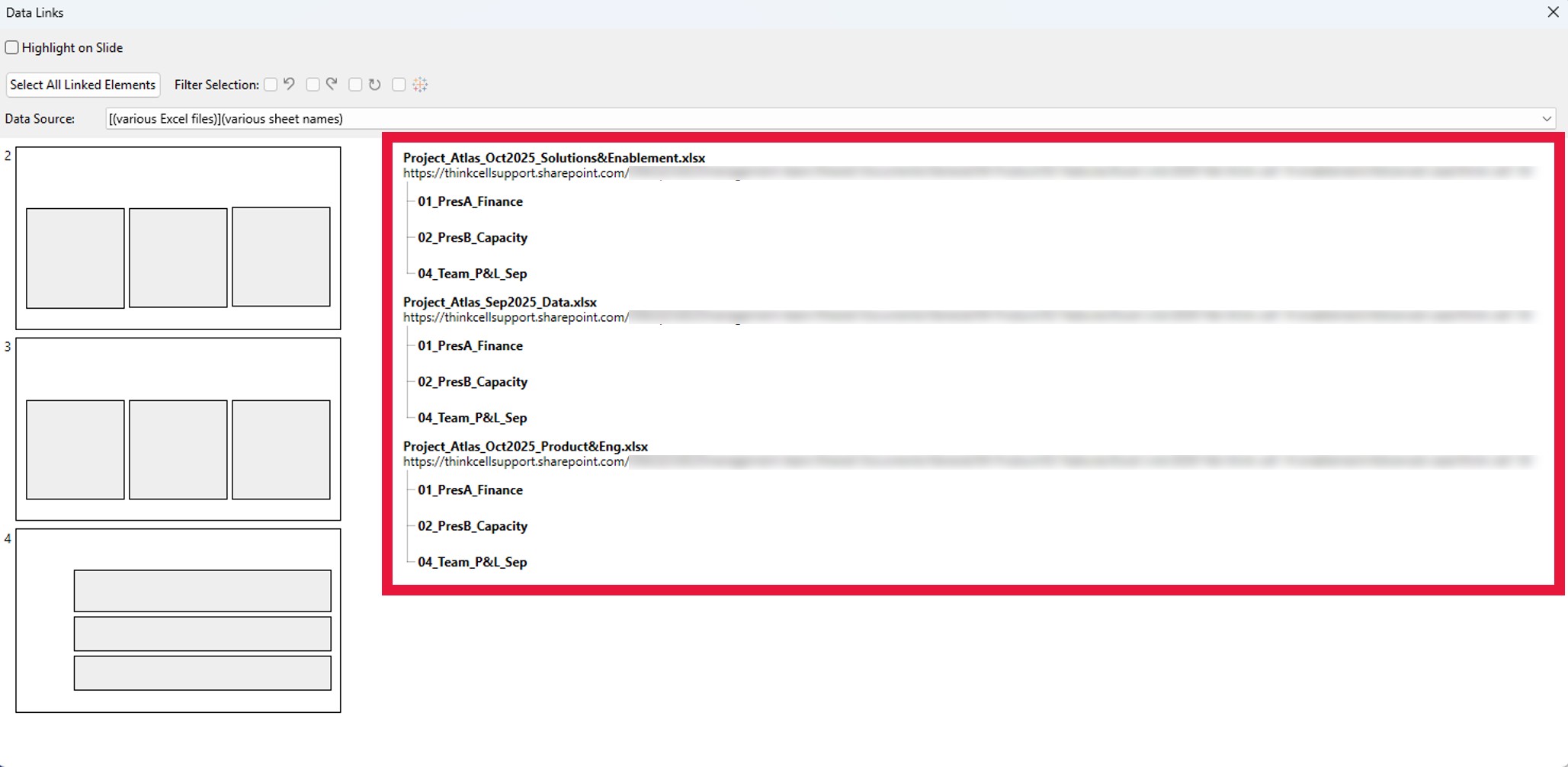
Whether your data is spread across multiple sheets and workbooks or you have one central Excel workbook with sheets for all your linked charts, the hierarchical view makes it easy to keep track.
Transparency: Never miss a possible change
think-cell won’t change your Excel links behind your back. But it will tell you when something has been altered so that you know to take a look. When think-cell identifies a new source, you’ll be notified via several alerts:
- Orange dot on the Data Links button in the think-cell ribbon tab
- Orange dot on the Data Links button within the More menu in the think-cell group of the Insert tab
- New potential source icon on the clickable pathway of the linked element
- New potential source icon in the menu in the data links dialog
- New potential source icons in the data links dialog
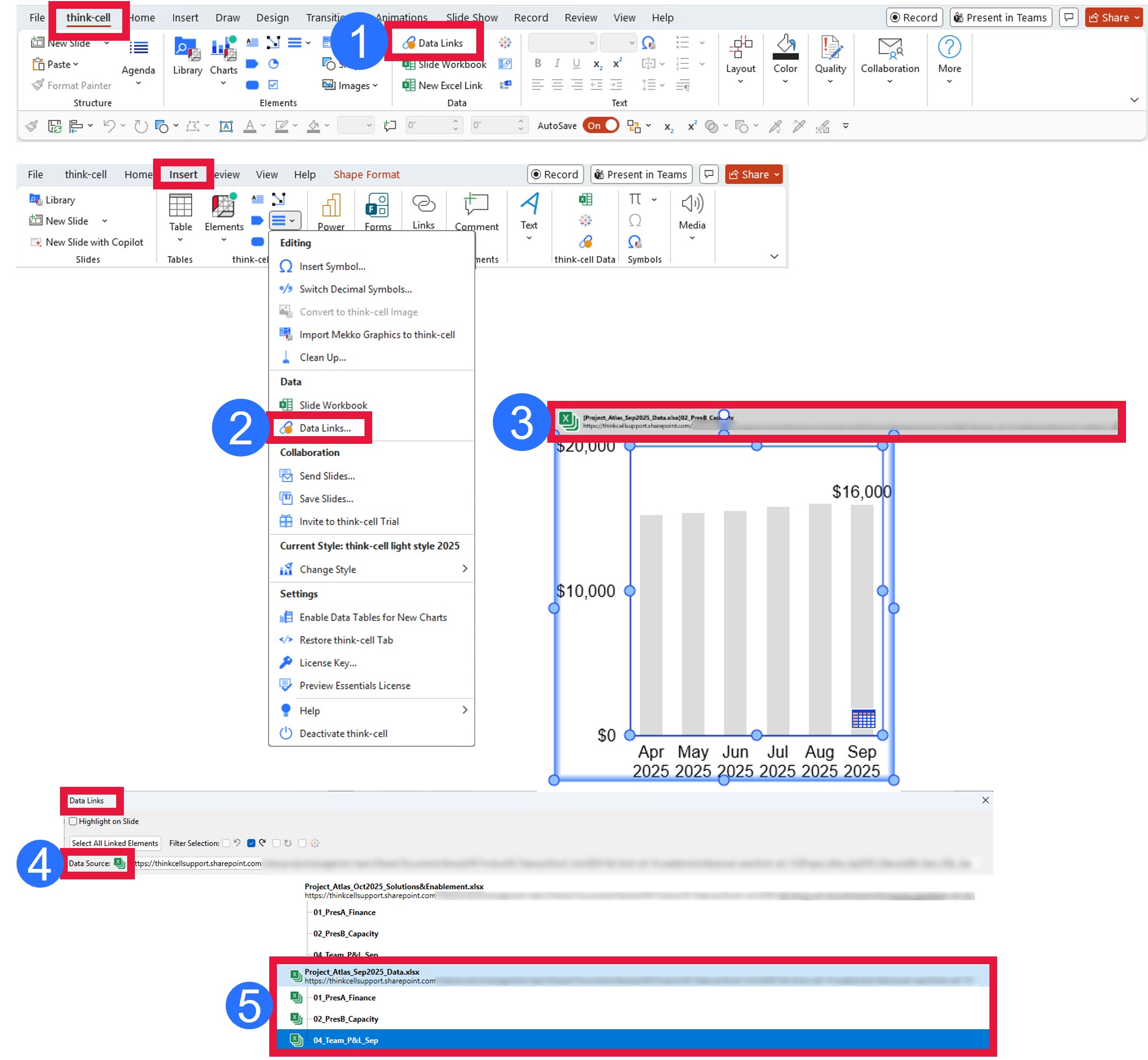
It’s simple, but the orange dots and the new potential source icon means you are clearly, consistently notified whenever there’s a potential change. You never miss an update in a linked Excel workbook and you stay in control of which data you are showing in your presentation.
Flexibility: Update links individually or in bulk
When you want to update an Excel link, you can select linked elements in the slide preview pane, or you can go through the hierarchy. You see all the potential ranges for that element and it only takes a click to set the Excel link to the source you want.
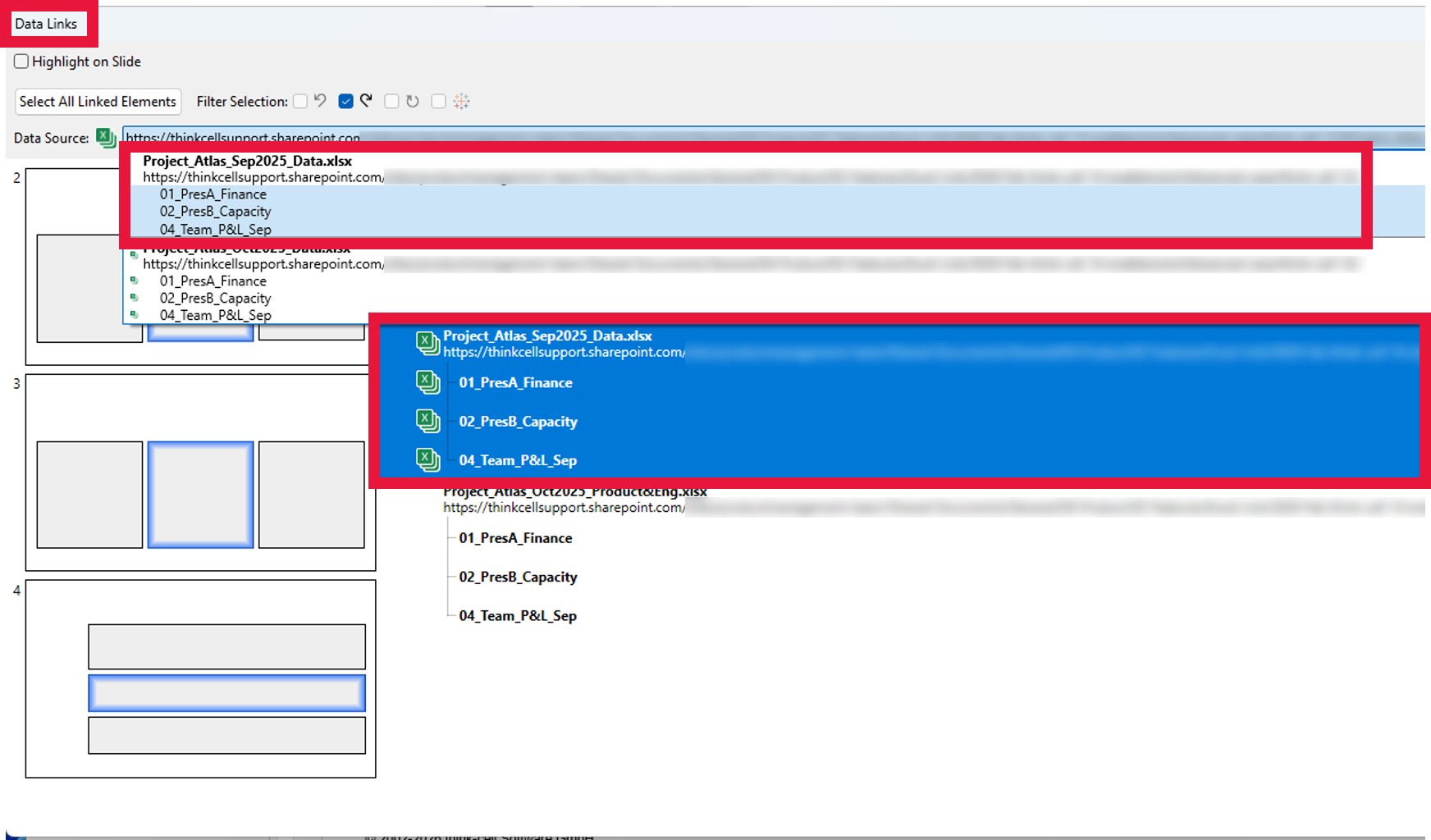
While you have granular control, you can also make bulk changes. With the Select All Linked Elements button, you can switch all the links in a presentation over to a new source in one go.
All these improvements combine for an improved experience in how you manage data links. You see things more clearly and you’re informed of updates, so it’s easy to pinpoint the changes you want to make. You know what your options are, you know what you’re changing, you’re in control.
Explore this topic further with AI:
Read more
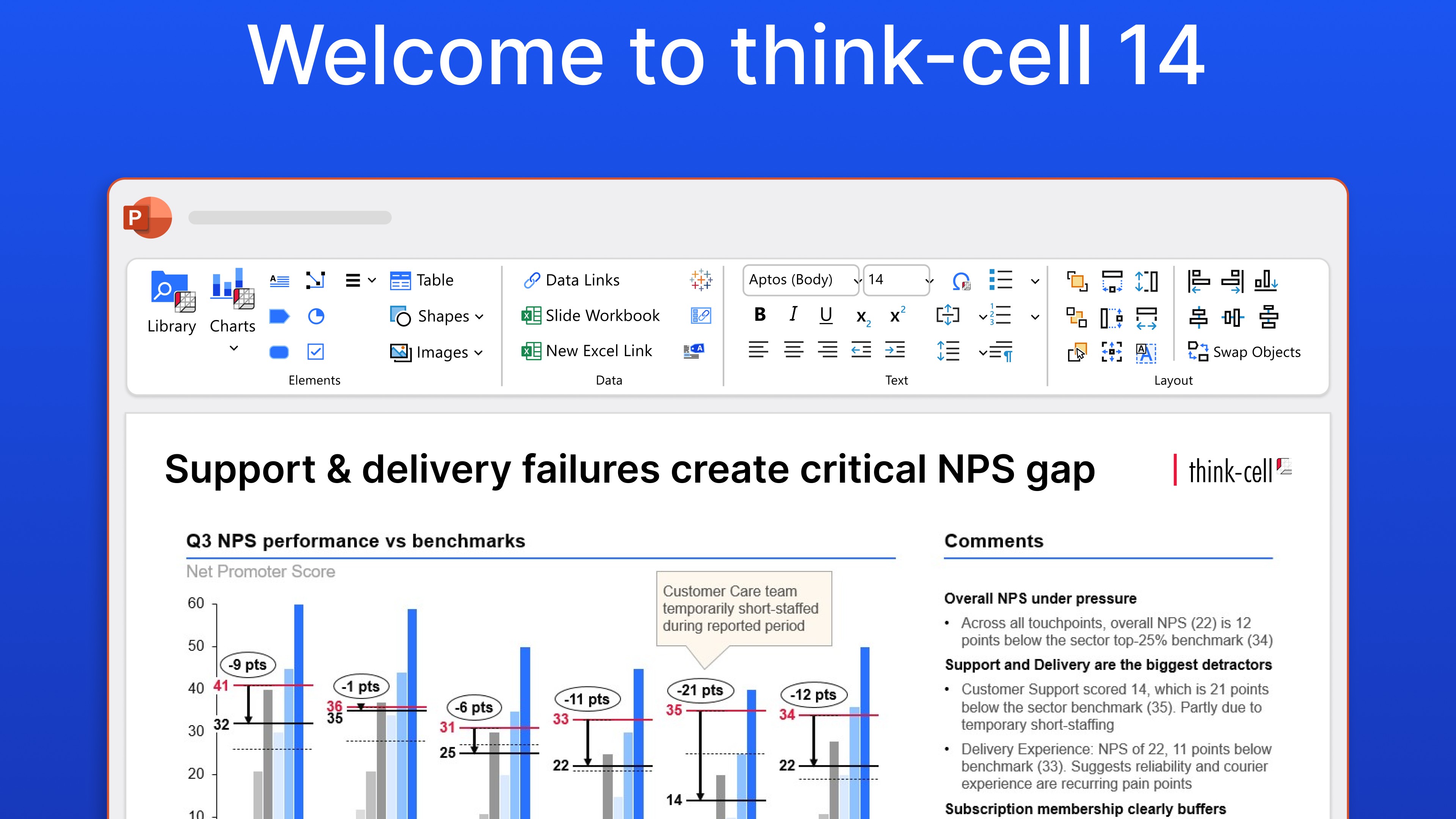
Read about the launch of think-cell 14, a new version of our flagship PowerPoint productivity software, think-cell Suite, which introduces a set of powerful innovations to save users time and give them more versatility in their PowerPoint worfklows.
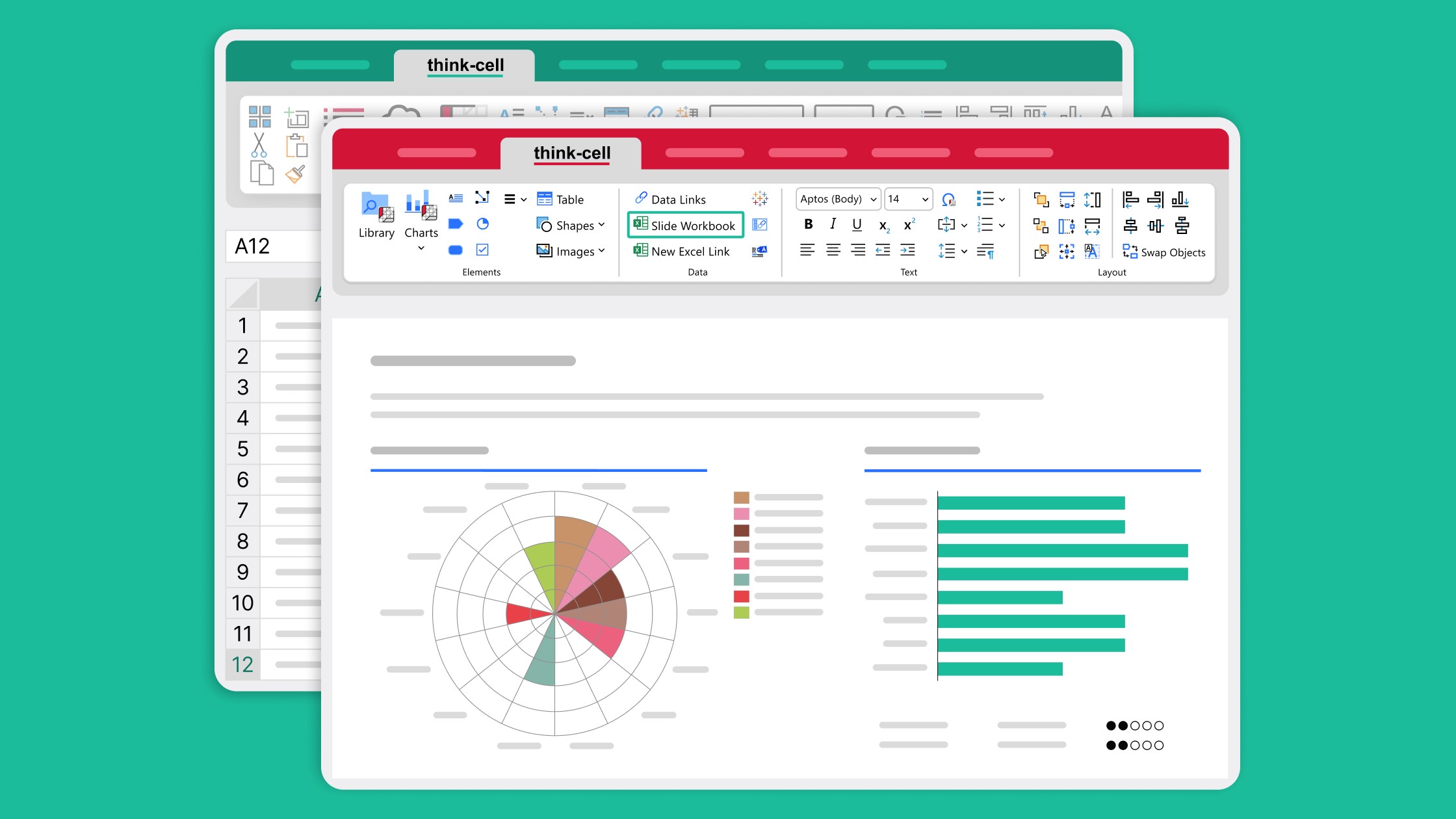
Learn how slide workbooks can change the way you build data-heavy presentations by combining the flexibility of ad-hoc datasheets with full Excel functionality.

Global survey of 1,200 professionals in 12 countries into how AI is used in presentation workflows.