KB0123:为什么 thinkcell 图表中的标签显示为白色矩形?
问题
某些标签的背景错误地显示为白色或显示幻灯片背景。当前版本的 PowerPoint 不会出现此问题。
|
|
|
|
|
|


- 使用 PowerPoint 2007 打开 .ppt 文件并点击进入标签时,会显示正确的标签背景,但保存并重新打开文件后,错误背景会再次出现。 阅读更多
- 在 PowerPoint 2007 中打开受影响的 .ppt 文件。
- 点击进入受影响的标签 > 标签背景会变为正确颜色。
- 保存、关闭并重新打开文件。
- 标签背景再次变为白色(或相应地变为背景填充)。
- 使用 PowerPoint 2007 打开 .ppt 文件并点击进入标签后,当显示正确的标签背景时,PowerPoint 用户界面仍显示错误的 Slide background fill。 阅读更多
- 在 PowerPoint 2007 中打开受影响的 .ppt 文件,并点击进入受影响的标签,使标签变为正确颜色。
- 停用 thinkcell。
- 通过右键点击标签 > Format Shape > Fill 检查标签背景:本应显示 No fill 的位置却显示为 Slide background fill。
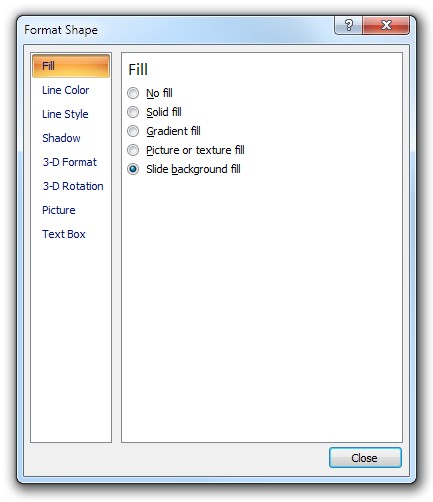
- .pptx 文件仅在 PowerPoint 2003 及更早版本中打开时显示该错误,在 PowerPoint 2007 中打开时不会显示。

解决方案
PowerPoint 2010 和 2013
PowerPoint 2010 和 2013 中曾存在该问题,但已修复。
- 安装 Microsoft 的 Office 更新。
- 更新到当前版本的 thinkcell。
- 打开受影响的文件,点击每个受影响图表中的任意标签以触发修正,然后保存演示文稿。
PowerPoint 2007
在 PowerPoint 2007 中无法完全修复此问题。
删除受影响的标签并重新添加,可以修复这些标签。但是,即使是新标签也可能再次受到此问题影响。
点击进入标签后将文件另存为 .pptx,可以从表面上解决问题。您可以在 PowerPoint 2007 及更高版本中工作,而不会看到损坏的标签。但在 PowerPoint 2003 或更早版本中打开 .pptx 文件时,会显示损坏实际上仍隐藏存在。
为避免将来出现此问题:
- 使用 PowerPoint 2007 时,请使用 .pptx 文件格式。
- 避免将演示文稿从 PowerPoint 2007 传递到 PowerPoint 2003 及更早版本。
PowerPoint 2003 或更早版本
打开受影响的文件,点击每个受影响图表中的任意标签以触发修正,然后保存演示文稿。
说明
thinkcell 通常使用 No fill 选项作为标签背景。但是,如果标签位于线条或复杂背景之上,则会使用 Slide background fill 选项以确保可读性。由于 PowerPoint 2007 中的一个问题,如果以编程方式将标签背景从 Slide background fill 切换为 No fill,标签会损坏,在特定情况下会导致白色背景。
Microsoft 已为 PowerPoint 2013 和 2010 修复了该问题。PowerPoint 2007 将不会提供修复。使用 PowerPoint 2007 时,即使不使用 thinkcell 也可以重现该问题。 阅读更多
不使用 thinkcell 进行复现
请执行以下步骤:
- 停用 thinkcell:thinkcell > Tools

- 在 PowerPoint 2007 的空白幻灯片上执行此宏:
Sub test()
        Dim sld As Slide
        Set sld = ActiveWindow.View.Slide
        Dim shp As Shape
        Set shp = sld.Shapes.AddShape(msoShapeRectangle, 0, 0, 100, 100)
        shp.Fill.Background
        shp.Fill.Solid
        shp.Fill.ForeColor.RGB = 255
End Sub
左上角会出现一个红色矩形。

- 右键点击形状 > Format Shape… > Fill。
预期结果:形状为红色纯色填充,PowerPoint Format Shape 对话框显示 Solid fill。
实际结果:形状为红色纯色填充,但 PowerPoint Format Shape 对话框显示 Slide background fill。 -
将演示文稿另存为 .ppt,并在 PowerPoint 2003 中加载。
预期结果:形状为红色纯色填充,PowerPoint Format AutoShape 对话框显示纯色填充。
实际结果:形状为背景填充,PowerPoint Format AutoShape 对话框显示 Background。